Inserting Tables into Text
If you want your descriptor to appear in tabular form, insert a table into all descriptor texts.
To do this:
1. Access the descriptor structure.
2. Edit the group text.
Exemple: "Message-Received" group
3. From Word menu bar, insert a table and set up the text fields in table format.
4. Format this text with the “M-Table” style.
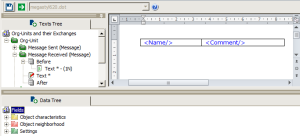
5. Create a table for the “Before” text. Insert a one-row table and enter text describing the contents of the table and format this text with the “M-Table” style.
Example: text such as “Message(s) received by the Org-Unit"
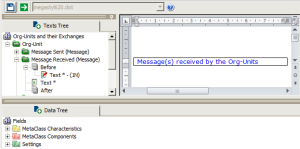
6. Right-click the “Text” you modified previously, and select Properties to specify the text branching mode.
7. Select the Format tab and select Same Line, so that there is no break between the tables.
8. Proceed similarly with “Message by the Message-Sent MetaAssociationEnd” group, but copy the tables you just created so that presentation is consistent.
After processing the descriptor, a result similar to the following is displayed:
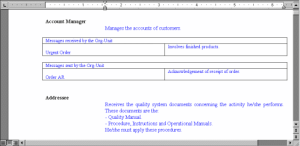
 By default, Word 2000 adjusts the columns of the table to fit their contents. For improved legibility of tables generated using HOPEX, create the first line of the table in the descriptor editor, then clear the Automatically resize to fit contents check box in the table options (in Word, menu Table > Table Properties, Table tab, Options button).