Using the Comment Window
You can modify or enter object comments in the desktop comment window.
 Displaying the comment window is useful when you want to successively enter the comments for several objects.
 When you click an object in a navigation window, in a diagram, or in a query result dialog box, the comment of the selected (active) object appears in this window. You can therefore easily modify the comment for the object then move to the comment for another object.
Displaying the comment window
To display the comment window:
1. Select View > Edit Windows > Comment.
The comment window appears. It displays the comment of the active object.
2. You can modify/enter a comment.
Inserting an object in a comment
You can insert an object in a comment:
• by drag & drop
Example: select an object in the explorer and drop it into the comment.
• with the Insert a field  button of the comment window.
button of the comment window. Viewing the identifier of an object in a comment
To view the identifier of objects inserted in comments:
 In the object comment windows, click Hide/Show Fields.
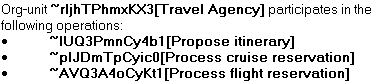
Deleting a field in a comment
To delete a field in a comment:
1. Click to view the field.
to view the field.2. Select the corresponding field code.
3. Delete the selected code.
Copying/pasting text
You can copy/paste text in a comment.
By default the text is pasted without formatting (RTF or HTML). To format the text, use the HOPEX text-editor available in the comment window.
Pasting text with formatting does not guarantee formatting consistency in deliverables (reports, reports (MS Word) or Web sites) restituting this text.
To remove/keep the text formatting while pasting text:
1. Access the Options.
2. In the Options tree, select Compatibility > Windows Front-End > Text Editing.
3. In the right pane:
• To remove text formatting while pasting text, keep Paste without formatting.
 Default value (recommended).
• To keep text formatting while pasting text, clear Paste without formatting.
This mode is not recommended. In case of troubles, manually unformat the text, then use the HOPEX text-editor to format it.