Adding a TreeSet Collection to a TreeSet Definition
At creation a TreeSet Definition includes a single TreeSet Collection: the root TreeSet Collection. You may need to add one or several TreeSet Collections to the TreeSet Definition structure.
To add a TreeSet Collection you must define:
• where you want to add the TreeSet Collection in the TreeSet Definition structure
• how you want to populate the TreeSet Collection:
• a parameter
• a MetaAssociationEnd
• a query
• a TreeSet Collection reference
Adding a TreeSet Collection populated by a MetaAssociationEnd
To add a TreeSet Collection populated by a MetaAssociationEnd:
1. Access the TreeSet Definition properties.
2. Display its Definition page.
3. In the TreeSet Definition, right-click the TreeSet Collection (or the root) under which you want to add a TreeSet Collection, and select New > TreeSet Collection.
4. Enter a Local name to the TreeSet Collection.
5. In the Collection is populated by drop-down list, keep "MetaAssociationEnd".
6. In the Populating MetaAssociationEnd drop-down list, select the MetaAssociationEnd.
 The list includes available MetaAssociationEnds only, i.e. the MetaAssociationEnds of the parent TreeSet Collection.
7. Click OK.
The TreeSet Collection is added to the TreeSet Definition under the parent TreeSet Collection.
8. (If needed) Define the TreeSet Collection.
Adding a TreeSet Collection populated by a query
You can use a provided query or create your own query.
To add a TreeSet Collection populated by a query:
1. Access the TreeSet Definition properties.
2. Display its Definition page.
3. In the TreeSet Definition, right-click the TreeSet Collection (or the root) under which you want to add a TreeSet Collection, and select New > TreeSet Collection.
4. Enter a Local name to the TreeSet Collection.
5. In the Collection is populated by drop-down list, select "Query".
The Populating Query field is displayed and includes the list of available queries only, i.e. the queries related to the parent TreeSet Collection.
6. In the Populating Query drop-down list, select the query.
Else click the right-oriented arrow to create a query.7. Click OK.
The TreeSet Collection is added to the TreeSet Definition under the parent TreeSet Collection.
8. (If needed) Define the TreeSet Collection.
Adding a TreeSet Collection populated by a parameter
To add a TreeSet Collection populated by a parameter:
1. Access the TreeSet Definition properties.
2. Display its Definition page.
3. In the TreeSet Definition, right-click the TreeSet Collection (or the root) under which you want to add a TreeSet Collection, and select New > TreeSet Collection.
4. Enter a Local name to the TreeSet Collection.
5. In the Collection is populated by drop-down list, select "Parameter".
The Populating Parameter field is displayed and includes the list of available parameters only, i.e. the parameters related to the parent TreeSet Collection.
6. In the Populating Parameter drop-down list, select the parameter (which is a Collection Parameter).
7. Click OK.
The TreeSet Collection is added to the TreeSet Definition under the parent TreeSet Collection.
8. (If needed) Define the TreeSet Collection.
Adding a TreeSet Collection reusing part of the definition
You can add a TreeSet Collection which reuses a TreeSet Collection as a reference.
This Referenced TreeSet Collection can be either:
• a parent TreeSet Collection, or
• a same level TreeSet Collection
When adding a referenced TreeSet Collection:
• it automatically adds the TreeSet Collection and its children (properties and/or TreeSet Collections). Thus, you do not need to describe this part of the definition again.
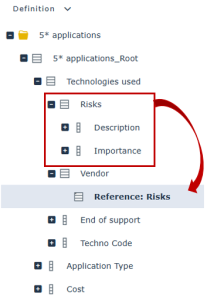
• you can feed it with the same collection provider or overload it
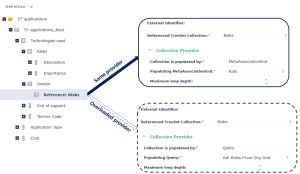
To add a TreeSet Collection reference:
1. Access the TreeSet Definition.
2. Display its Definition page.
3. In the TreeSet Definition, right-click the TreeSet Collection (or the root) under which you want to add the TreeSet Collection reference, and select New > TreeSet Collection Reference.
4. In the Referenced TreeSet Collection field, select the TreeSet Collection.
5. In the Collection Provider section, set its settings as described in the above sections (collection populated by a parameter, a MetaAssociationEnd, or a query).
6. Click OK.