Presentation of the IT-Pedia Connector
Use Case in HOPEX ITPM
In the ITPM and ITBM solutions, the IT-Pedia connector is available to the Functional Administrator. He/she is in charge of importing data from IT-Pedia. He/she can initialize a new repository by importing software technologies from IT-Pedia and use the Functional Administration Desktop to manage automatic update workflows and alert tools.
The Technology Portfolio Manager (TPM) is responsible for software technologies and their life cycle. He can include his software technologies in the scope of the automatic update in order to be notified automatically of any changes. He/she can also send the Functional Administrator a request to prepare the import of new software technologies using IT-Pedia.
The Application Portfolio Manager should subscribe to the standard notification on sensitive software technologies that are used by his applications. Thus, when these software technologies are updated by import from IT-Pedia properties, he will receive a notification of the change. He will analyze the impact and decide how to proceed (keep the software technology, use a new version or change it).
Prerequisite Conditions (IT-Pedia Connector V3)
Normalizing existing technologies
Before using the IT-Pedia connector, you must initialize the list of technologies in your repository in IT-Pedia for normalization. This initialization is done through a macro.
To launch the macro:
1. Log into HOPEX (Windows Front-End) as Hopex Customizer.
2. Launch the initialization macro ~kKAycUFMZzWC [IT Pedia V3 - Initialize my Products from Hopex Repository].
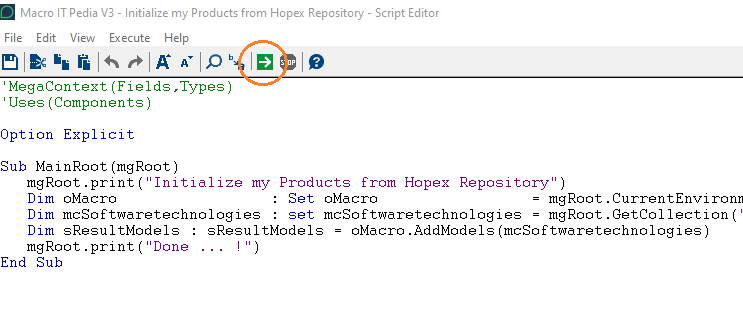
After the macro is launched, the My Products Procurement list in IT-Pedia is populated by HOPEX technologies to go through the normalization process.
Defining the connection options to IT-Pedia
The IT-Pedia connector is available as a module.
After installing it, before you can import content from IT-Pedia, you must authorize exchanges with IT-Pedia in HOPEX.
To set the required import options:
1. Open the Administration desktop.
2. In the edit area, click Environment Options.
The options window opens.
3. In the navigation tree, click Tools > Data Exchange > Import > IT-Pedia.
4. In the right pane of the window, enter information to access IT-Pedia API (provided by Eracent):
• IT-Pedia URL address: this is the URL of the IT-Pedia public catalog.
• IT-Pedia API user
• IT-Pedia API password
Eracent APIs are available at the following address: https://itpedia.eracent.com/API/.