Synchronization Results: Correspondences
When synchronization is completed, the tables, columns, keys, and indexes of the physical diagram have been synchronized with the data diagram. They can now be viewed and the desired optimizations made.
Mapping characteristics
For more details on mapping:
 In the mapping editor, select the object mapping element and click Properties.
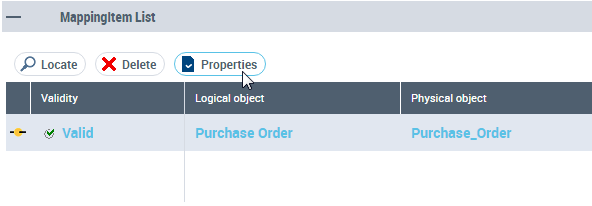 In the window that opens, click the drop down list and select Characteristics.
Synchronization scope
By default, all objects in synchronized models are included in the synchronization. You can however exclude an object from the synchronization.
Synchronization state
You can protect an object so that it will not be modified at synchronization by specifying that it is "Frozen".
See also Protecting Objects.
Synchronization direction
The synchronization direction of a mapping indicates which object is updated related to the other.
In certain cases, synchronization is possible in both directions (for example, when two objects that can be synchronized do not yet have a mapping). In other cases, it is only possible in one direction (for example, if one of the two objects is already synchronized) or impossible in both (because each object already has a mapping or because the object types concerned cannot be subject to synchronization). This indication is given in the Synchronization box.
Summing up:
• Bidirectional: synchronization in both directions.
• From left to right: synchronization is from left to right (the object on the right is synchronized with the object on the left).
• From right to left: synchronization is from right to left.
• Never : no mapping is possible between the two objects.
For more details on mapping, see The Database Editor.