Creating objects in tabular entry mode
 When you create an object in a diagram, it is automatically connected to the diagram.
Creating an object in tabular entry mode
Depending on the type of object and the type of the diagram you want to create, the creation procedure is different.
To create an operation in an organizational process diagram using tabular entry mode, for example:
1. Now select the Operations tab.
2. Click New.
The add window appears.
3. Select the Operation type and click OK.
If you are in Synchronized mode, the diagram is automatically updated; otherwise, click on Refresh.
Creating an object from a table object
When you roll the mouse over a line, several buttons appears at the end of line. These buttons enable adding objects or deleting the current one.

Creating several objects of the same type in tabular entry mode
You can quickly create several objects of the same type possibly linked between them or to an object already in the diagram.
For example, to simultaneously create a number of operations in an organizational process diagram:
1. Select the operation or the organizational process from which you want to create the other operations.
2. Click the Multiple Creation button.
The creation dialog box opens.
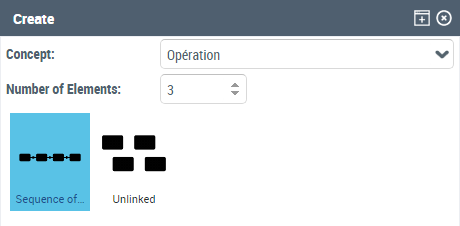
3. Select the concept that interests you.
4. Enter the Number of Steps you wish to create.
5. Link these operations by selecting Sequenced or Independent.
6. Click OK.