Moving Line Segments
To change the shape of a line:
1. Place your cursor on a joint.
It changes shape.
2. Click the handle.
3. Hold down the mouse button and move the handle towards the desired position.
4. Release the mouse button.
Moving Lines
To move a line:
1. Select the line.
2. Click the line (taking care not to click a handle).
3. Hold down the mouse button and move the line towards the desired position.
 If you perform the above steps by selecting a handle, you will change the shape of the line and not its position.
Connecting a Line to an Element
You can connect the end of a line to an element, so that if the element moves, the line moves with it.
To attach a line to an element:
1. Select the handle at the end of the line.
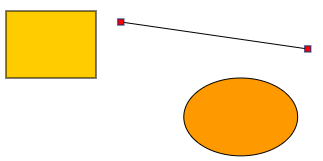
2. Holding the mouse button down, drag the handle inside the element.
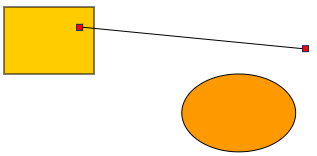
3. Release the mouse button.
4. Right-click the line handle and select Connect to Object.
You can also double-click the handle to connect or disconnect the line.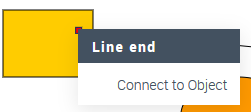
The handle is connected to the element. When the element is moved, the handle follows it.
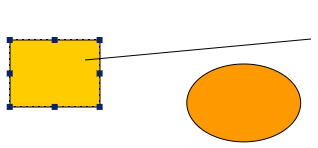
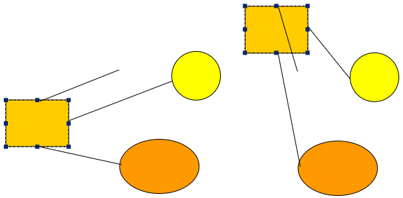
In this example, the three lines are connected to the rectangle and follow its movements.
To disconnect a line from an element:
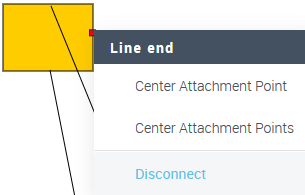
1. Position the cursor over the connected end of the line.
2. In the pop-up menu, select Disconnect.