Running an Excel Export
You can run an export from the Excel file configuration window.
To run an export:
2. Click Next.
3. Click Open the Excel file to view the export file.
The generated Excel file is in the format expected for later import. You can save this file if you wish.
4. To modify export parameters, click Previous.
5. To discard export, click Cancel.
6. Click OK to finish.
Example of generated files
Below is an application worksheet presenting:
• In column A: the list of applications, by absolute identifier.
• Column B: the list of applications, by short name.
• In the columns that follow: attributes of applications (short name, code, comment, etc.).
In each column, the grayed first two lines indicate the datatype of the column and its absolute identifier.
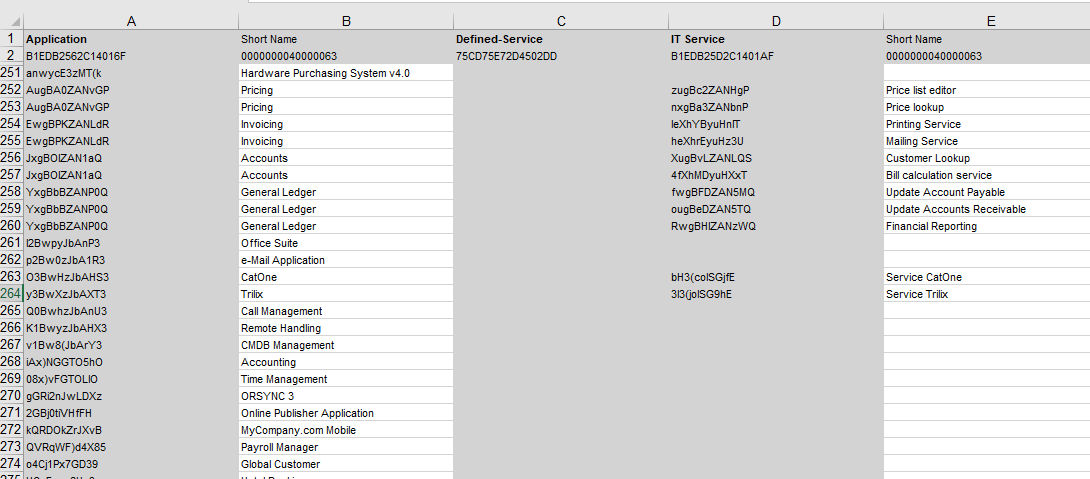
Below is a worksheet presenting links of "Defined Service" type between applications and application services: This shows that:
• Column A: the list of applications, by absolute identifier.
• Column B: the list of applications, by short name.
• Column C: the link type ("Defined Service").
• Column D: the list of application services, by absolute identifier.
• Column E: the list of application services, by short name.