Creating a Key
See previously: Database Tables.
To create a key:
1. Right-click the table concerned and select Properties.
2. Click the Characteristics page.
3. In the Keys section, click New.
The key creation dialog box appears.
4. Select the type of key to be created: "foreign" or "primary". Creation of the key varies according to the type selected.
Primary key
When you select "Primary" type, the key appears in the properties of the table.
To define the properties of the key:
 Right-click the key and select Properties.
In the Columns page, you can specify the columns concerned by the key.
It is also possible to specify the primary key of a table in the Identifiers page of the properties dialog box of the entity to which the table belongs. See Entity Identifier.
It is also possible to manually specify the primary key by relating it to elements that can be attributes of the entity or the primary key of another table connected by a constraint association (multiplicity 1).
In all cases, the key specified will be created in the table on synchronization.
Foreign key
When the key created is a foreign key, a list of database tables is presented.
1. Select the reference table to which the foreign key relates.
If the table you select includes a primary key, a dialog box opens.
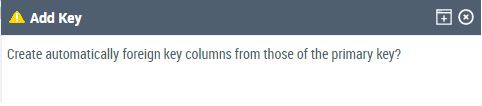
2. Select Yes.
the key appears in the properties of the table.
You can modify the Local Name of the key (the full name of the key is composed of the name of the database to which it belongs, followed by the name of the table then the local name: in the above example, "Exchange DB::Concern::Key1").
For a foreign key, as when editing a key, it is possible to specify repository integrity management on update (On Update) and on deletion (On Delete).