Running the Simulation
Updating a simulation scenario
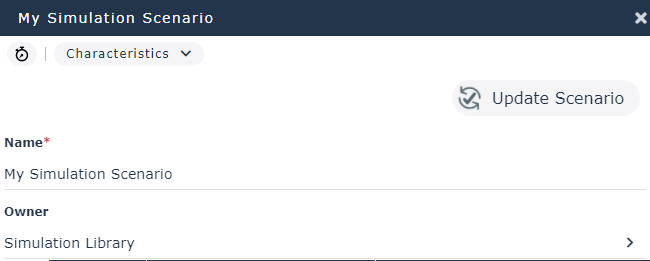
Clicking the Update Scenario button allows to take into account the modifications made on the objects of the scenario or on their parameters.
If, for example, you have modified the diagram of the simulated process, you must update the scenario so that this modification is taken into account during the next simulation.
Running Simulation
Once you have entered the parameters of the process simulation scenario, you can start the simulation.
To run the simulation:
 Click the Simulate button
  in the simulation editor.
Simulation results are recorded in the scenario.
Errors of a simulation scenario
Errors in the parameters of the simulation scenario or in the simulated process itself may prevent the simulation from calculating the results.
In this case, you can display the Raw Simulation Data report to localize the source of the error.
To access this option you must have access to the advanced user interfaces.
To activate this option:
1. On the desktop, click Main Menu > Settings > Options.
2. In the left pane of the window, click Workspace > Desktop folder.
3. In the right part of the window, verify that Display advanced UI box is set to “Yes”..
4. Click OK.
To access the scenario error report:
1. Open the property page Simulation Outputs > Row Simulation Data.
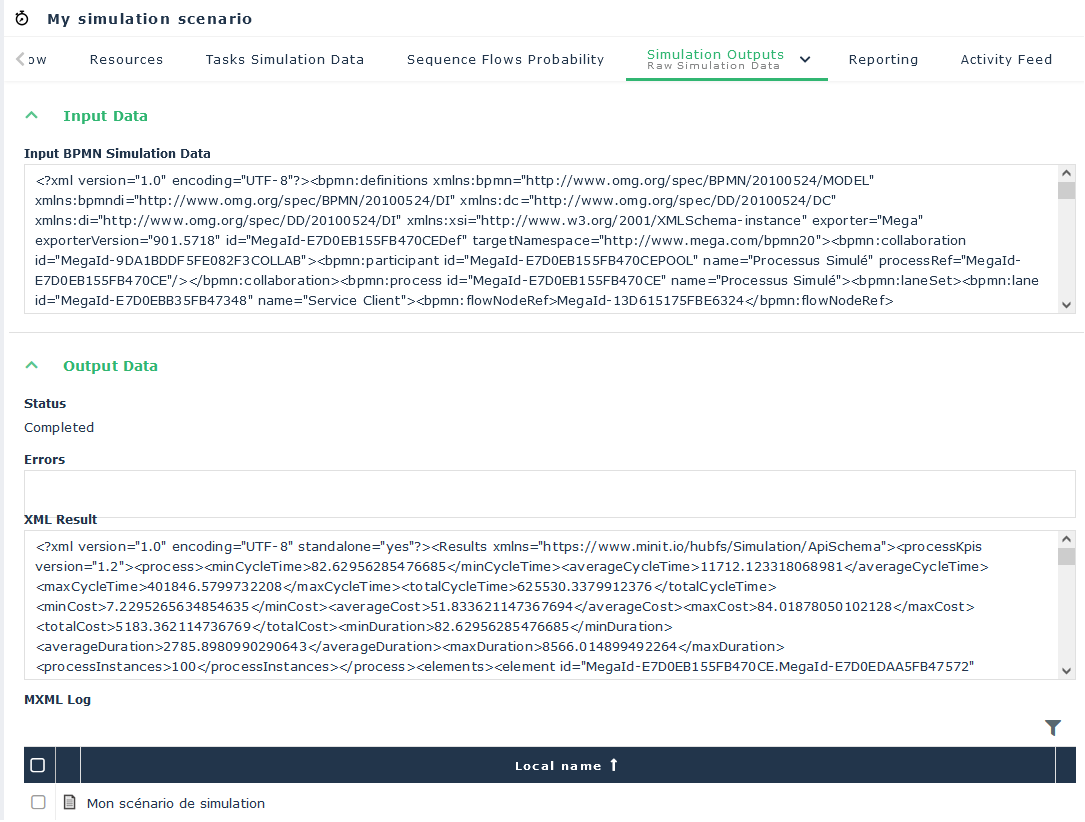
2. The Input Data section includes the XML file generated from the BPMN diagram of the simulated process and imported to run the simulation.
3. The Output Data section includes three sub-sections:
• The simulation scenario Status,
• An Error message if the simulation failed,
• If you have checked the option Simulation logfile in the scenario parameters, the Log MXML file is generated by the simulator.
 For more details on a scenario parameters, see Characteristics of a simulation scenario.
All simulated events are traced in this MXML file.
Because of its size, this file is compressed. To access it, select the file and click Open.