Describing Conversation Message Flows
The message flows exchanged in a conversation are described in the exchange associated to the conversation.
 A message flow represents circulation of information within an exchange contract. A message flow transports its content.
Exchange is described by message flows and their content which are exchanged between the two roles representing the stakeholders in the conversation.
The content designates the content of a message or an event, independent of its structure. This structure is represented by an XML schema linked to the content. A content may be used by several messages, since it is not associated with a sender and a destination. There can be only one content per message or event, but the same content can be used by several messages or events.To describe message flows exchanged in a conversation:
1. Open the Characteristics property page of the Conversation that interests you.
2. From Exchange field, you can access to the pop-up menu of the exchange used.
3. Open the Message Flow property page of the exchange.
4. Click the New button.
The Creation of Message Flow - Content dialog box opens.
5. From the Content drop-down list, select the content you wish to associate with the message flow.
The message flow with its content is displayed in the list of conversation contents.
 You can associate several contents with the message flow.
6. Specify the direction of each message flow.
7. Click OK.
Creating an exchange diagram (BPMN)
The sequence of flows exchanged during a conversation can be described by an exchange diagram.
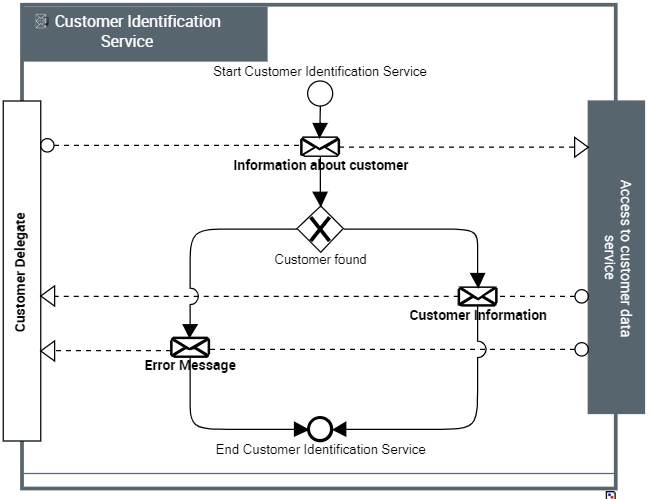
"Customer Identification Service" Exchange Diagram
The customer identification service protocol begins by sending information enabling identification of the customer. An error message appears if the customer is not found, otherwise customer information is sent (customer identification, status of orders, etc.).
To create an exchange diagram:
1. Open the Characteristics property page of the Conversation that interests you.
2. From Exchange field, you can access to the pop-up menu of the exchange used.
3. In the pop-up menu of the exchange, select New > Exchange Diagram (BPMN).
The diagram opens. The exchange frame is positioned and the two roles (Consumer and Supplier) are created. The message flows associated with the exchange are also positioned in the diagram.