3. Upgrading an HOPEX module
Pre-conditions:
• Identify the modules and related version to install (target modules).
Ex: module HOPEX Boldbi (dashboard.boldbi) Version: 15.0.0+XXXX
This information is usually provided by MEGA Technical Support.
Ex: module HOPEX Boldbi (dashboard.boldbi) Version: 15.0.0+XXXX
This information is usually provided by MEGA Technical Support.
• Identify the HAS instances involved.
Ex: preproduction instance http://svr0101:5000/
This information is provided by the project.
Ex: preproduction instance http://svr0101:5000/
This information is provided by the project.
• Know the credentials for the HAS Console of this instance.
This information is provided by the project.
This information is provided by the project.
• Check that no user is connected to the HAS instance.
Procedure:
For each HAS instance:
1. Enter the url of the instance http://svr0101:5000/
2. Click Open for HAS Console.
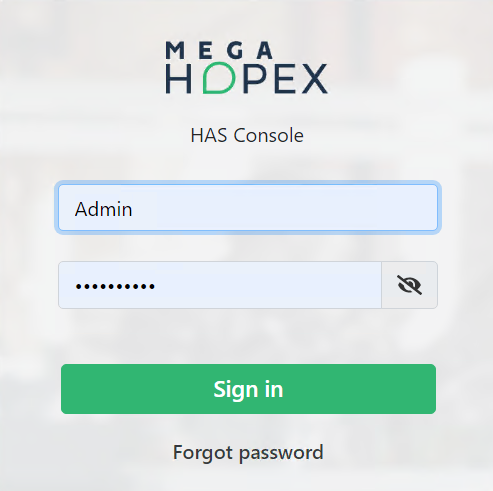
3. Enter credentials and click Sign in.
4. In the left pane of HAS Console, Modules > Module list.
The list of modules installed is displayed (tab 'Installed').
The list of modules installed is displayed (tab 'Installed').
5. Click on tab Update.
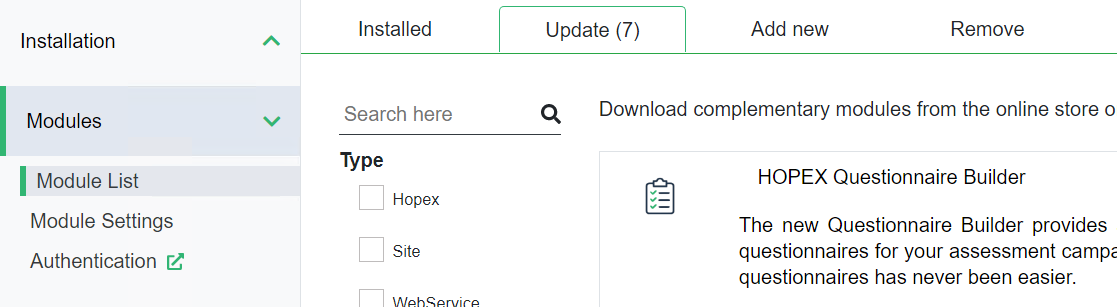
6. Browse the list of modules and select the target module.
ex HOPEX Boldbi
A page displays the history of versions.
ex HOPEX Boldbi
A page displays the history of versions.
7. Carefully select the target version and click on the download icon on the right.
Note that target version may not be the last version available.
Note that target version may not be the last version available.

Wait until the processing is complete.
The module is downloaded then deployed.
8. In the left pane of HAS Console, click Cluster.
A page displays the different module deployed.
A page displays the different module deployed.
9. Select the module updated (ex :module graphql.ide) and click Start.
Target version of module should be displayed.
ex: module HOPEX Boldbi version 15.0.0+XXXX.
Target version of module should be displayed.
ex: module HOPEX Boldbi version 15.0.0+XXXX.
Checking dependencies
If a module M1 depends on a module M2, the update of M2 may require updating also M1.
Once the HAS instance is restarted, the system check the dependencies of each module installed.
• If there is no issue with a dependency the module is loaded.
• If there is one issue with a dependency the module is disabled automatically.
Use the above procedure to update one or several modules.
Once all expected modules are updated, restart the HAS instance for the last time.
If there is no issue with a dependency, all the modules are loaded and displayed with a green checkmark.