Prerequisites for Using HOPEX Suite for TOGAF
Before using the HOPEX Suite for TOGAF product, the HOPEX suite must be installed. You must then:
• Create the users of the product
• Import the TOGAF 9 solution pack
• Import the Metamodel Customizations solution pack
• Configure access to the TOGAF 9 libraries
Creating the main users
HOPEX Suite for TOGAF is intended for two kind of user profiles:
• The Method managers responsible for adapting the TOGAF 9 methods to the company's needs
• The Project managers who use the method phases recommended by the method managers to carry out their projects.
To create the different users for each profile:
1. In the HOPEX installation folder, start the administration tool Administration.exe.
2. Select the environment in which you want to work, for example, "Demonstration".
3. Log in with a user that has access rights to administer data, for example, "System".
4. Expand the environment and the User Accounts folders.
5. Right-click on Authorizations and select Open Diagram.
The authorizations diagram opens.
6. Use the Authorization icon in the object toolbar to create a "Method Manager" and a "Project Manager" authorization.
7. Link these authorizations to the "System" authorization.
8. Create the users for each profile.
9. Save and close the authorization diagram.
The diagram is automatically compiled.
Importing the TOGAF 9 - Data and Metamodel Customization Solution Packs
To access the TOGAF 8.1 and 9.0 components offered by HOPEX you must import the TOGAF 9 - Data and TOGAF 9 - Metamodel Customizations.
The solution packs are delivered in the TOGAF.exe compressed file and must be decompressed before they can be imported into a repository.
 TOGAF 9 - Sample is an example of a project created with the TOGAF 9 method. You can import this example for the purposes of this guide, however, it does not need to be imported for HOPEX Suite for TOGAF to function.You are encouraged to also import the HOPEX Architecture solution pack (in the mega.exe compressed file) which allows you to share common IT objects, such as artifacts, communication protocols and resource architectures. These objects are usually provided with the HOPEX Architecture product. This import is not mandatory.
To import solution pack, see "Importing a Solution Pack", page 217.
Metamodel Customizations
The HOPEX Modeling tool comes with its own set of concepts and vocabulary. To minimize the differences between the names of concepts in this tool and in the HOPEX Suite for TOGAF, the TOGAF 9 - Metamodel Customizations solution pack can be imported into HOPEX that renames certain concepts using the TOGAF vocabulary. This renaming is only done in English. It is advised to import the metamodel customization file only if you want to strictly work with a TOGAF metamodel. To retrieve the list of renamed terms, refer to the paragraph "MEGA Metamodel Customizations", page 48.
Configuring access to TOGAF 9 libraries
The aim of this step is to define the rights of the different profile users on the library objects imported.
You should have previously imported the TOGAF 9 - Data framework and created the users and profiles.To define these rights:
1. Start the HOPEX application, MEGA.exe and log in with a user that has administration rights.
2. Select the Tools menu > Manage > Protect Objects.
The Object Protection dialog box appears.
3. Select the TOGAF library in the Objects section and the authorization profile in the "Authorizations" section, for example, "Method Manager".
4. Click on Apply.
The confidentiality level changes.
5. If you have imported the TOGAF 9 - Sample framework, redo the steps above with the TOGAF 9 - Sample library and the "Project Manager" authorization.
6. Click Close .
7. Quit HOPEX by dispatching your transaction.
Additional Requirements
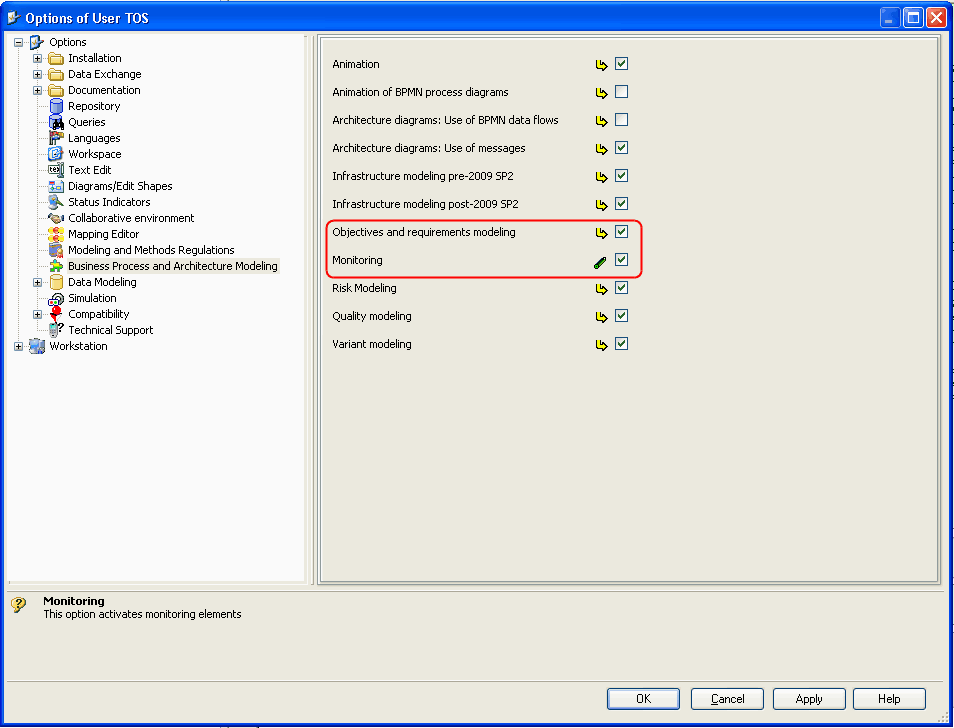
The HOPEX Modeling Suite offers the possibility of attaching objectives and requirements to architecture objects as well as indicators that can be used to determine to what extent objectives have been met.
See the HOPEX Common Features user guide for further information on objectives, requirements and indicators.To ensure that objectives and requirements are displayed in the TOGAF 9 project, activate the Objectives and requirements modeling option:
 Select Tools > Option > Business Process and Architecture Modeling > Objectives and requirements modeling.
To ensure that indicators are visible in the project activate the Monitoring option.
Select Tools > Option > Business Process and Architecture Modeling > Monitoring.