Accessing Workspace Management
To access the list of current workspaces in an environment:
1. Connect to HOPEX Administration and select the environment concerned.
2. Expand the Repositories folder.
3. Expand the folder of the repository concerned, right-click Workspaces and select Manage.
The management page for workspaces currently in progress in the environment appears.
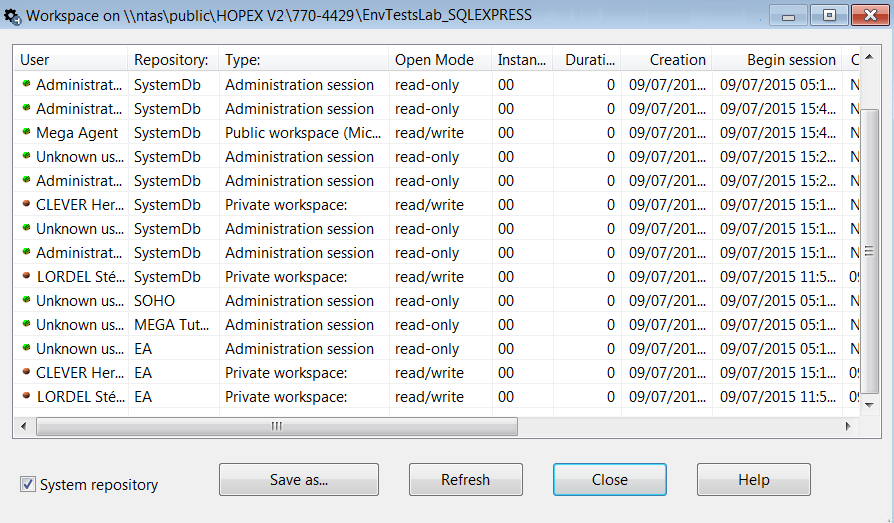
4. (Optional) Select System Repository to view system repository workspaces and the user connected to HOPEX Administration.
The private workspace dialog box details the following for each workspace:
 To sort workspaces according to a column, click the header of the corresponding column.
 You can also arrange columns in the order you want. To do this, click the header of the column to be moved and, holding down the mouse button, move it to the required position.
• its state:
• the green button  indicates that the workspace is open (private workspace) or in consultation (public workspace)
indicates that the workspace is open (private workspace) or in consultation (public workspace) • a red button  indicates that the workspace is passive or that the user is disconnected.
indicates that the workspace is passive or that the user is disconnected.• the User who created it and his/her Code.
In the case of collaborative workspaces, only the collaborative workspace owner appears. • the Repository to which it relates
• the Type of workspace:
• "Private Workspace":
The user can modify data. His/her updates are kept in his/her private workspace until dispatched.
• "Collaborative Workspace":
The participants of a collaborative workspace can, depending on their access level, modify the data. Their updates are kept in the collaborative workspace until the owner of this workspace decides to dispatch them.
• "Administration Session":
The user is Administrator type. The user cannot modify data.
• "Public Workspace":
The user can modify data. His/her updates are immediately visible to all other users.
• the Open Mode of the workspace, for example:
• "read/write" when a session is open.
• "read-only" when the user is in consultation only.
• no value, if the private workspace is passive (the user has saved his/her session but is not currently connected to HOPEX).
• no value if the user is in offline mode
• its Duration in days
• its Creation date and time
• the Start and End dates and times of the last Session
• the Location where it is stored
• its Dispatching Delay, which indicates its state compared to the current state of the repository (number of saves since the private workspace began, whether manual or automatic).
Each time the repository is updated, the difference between the private workspace view and the repository state increases. This difference is measured by the private workspace delay. Dispatching or refreshing the private workspace reduces the delay to zero.
It is recommended that you refresh your workspace if its delay is greater than 50.