Previewing the TreeSet
From the TreeSet Definition properties you can test the TreeSet.
For example, you can test the Organization TreeSet Definition.
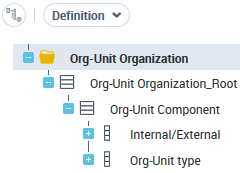
To preview the TreeSet:
1. Access the TreeSet Definition properties.
2. Display its Preview page.
3. (If needed) In the Parameters section, define the parameters:
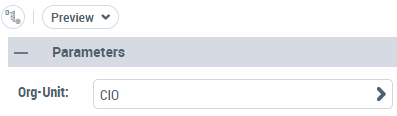
• (if collection parameter-based TreeSet Definition) in the <Collection Parameter GUIName> field, click Connect and connect the MetaClass item required.
Example: in the Org-Unit field, which is the Collection Parameter GUIName, connect "CIO".
• (if property parameters are used) enter the parameter values.
4. (If needed) In the Parameters section title, click  to reduce the section (and get more space for the report).
to reduce the section (and get more space for the report).5. Click Refresh the report.
The report is displayed.
By default it shows the TreeSet as a Dendrogram.
 Objects from a Data Reading access not accessible to the user are not displayed.
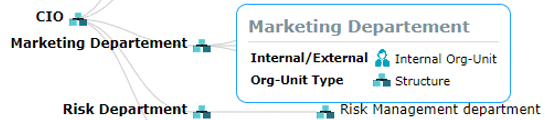
To get information on the Properties: roll the mouse over a node.
Example: Roll the mouse over "Marketing Departement", its "Internal/External" and "Org-Unit Type" values are displayed in a pop-up window.
You can customize the preview display:
• Click a node to hide its daughter branches.
Example: click "Marketing Department" node, the "Designer", "Catalog Manager" and "Marketing Manager" nodes are hidden.

• Bellow the graph, click Options  to:
to:
to:- reduce/increase the space between the nodes
- reduce the label length
• Use the mouse wheel to zoom in (/out) the graphic.
6. Click Treemap to display the TreeSet as a treemap.
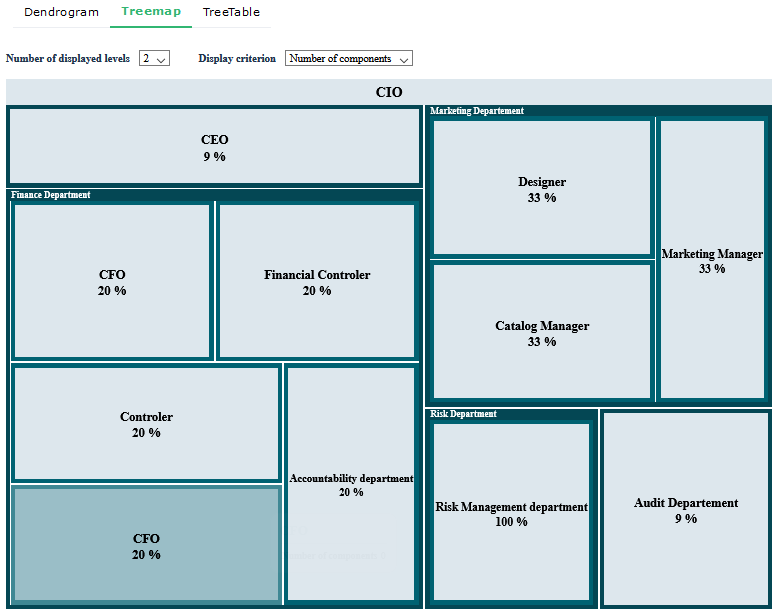
You can customize the preview display:
• modify the Displayed levels.
• modify the Display criterion (when available)
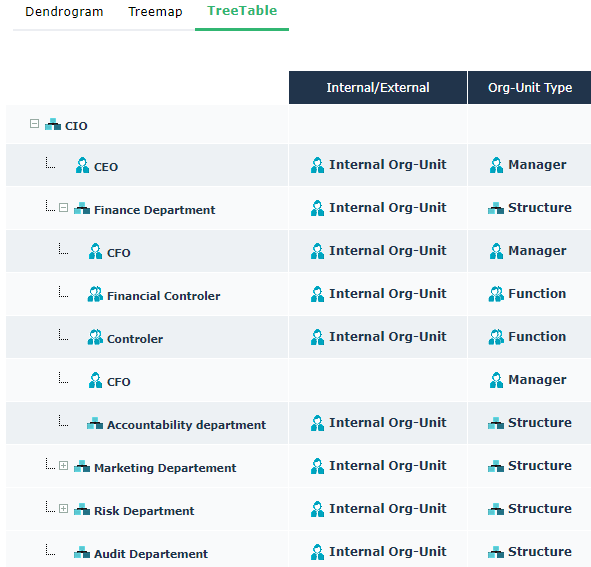
7. Click TreeTable to display the TreeSet as a TreeTable.
The TreeTable renderer type displays more information than the Dendrogram and Treemap type renderers, such as TreeSet Properties.
Ex.: this TreeSet is based on the CIO Org-Unit and displays for each Org-Unit child its Internal/External and Org-Units Type values.