Completing the work program manually
The lead controller can complete the test manually to specify its content.
He/she can add or remove themes/activities in the Work Program tab of the test.
Creating themes
To create a theme:
1. In the properties of a test, select the Work Program tab.
2. Click the icon of the test and select New > Test Theme.
The theme created appears in the tree of the work program.
3. Display properties of the theme.
You can:
• modify its name
• enter a comment
• specify its scope: process or regulation
4. Click OK.
You can now create activities and workpapers.
Creating activities
A test activity is a test element relating to a requirement. To create an activity:
1. In the properties of a test, select the Work Program tab.
2. Click the icon of the test (or theme) and select New > Test Activity.
The activity created appears in the tree of the work program.
3. Display properties of the activity.
4. Enter the name of the activity.
5. Connect the test activity to a requirement.
6. Select the Owner of the activity who can be:
• a controller
• lead controller of the current test.
 A lead controller and/or the controllers must have been specified in the test properties to be able to assign those responsible to activities. For more details, see Users.
7. Indicate the Estimated Workload.
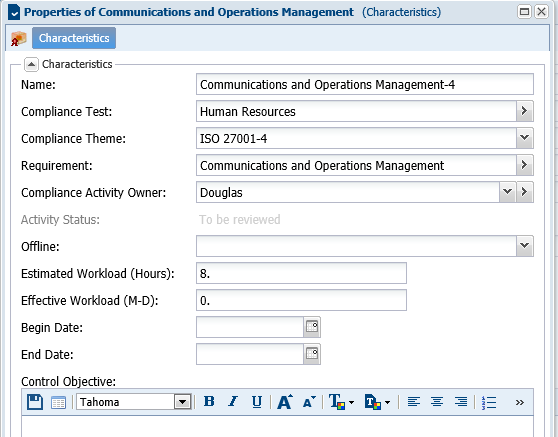
8. Click OK.
Assigning activities
For each activity, the lead taster specifies:
• Start and end dates
• Estimated workload
• Controller responsible for execution
To enter this data:
1. In the properties of the test, select the Activities tab.
2. Open the properties of the test activity concerned.
3. In the Compliance Activity Owner field, using the right-pointing arrow, select a controller from among the candidate controllers.
4. Enter compliance activity begin and end dates.
5. Specify the workload.
The activity owner is recipient of the test assessment questionnaire corresponding to the compliance activity.