Assigning resources to tests
Before assigning a resource to a test, you can view its availability and skills.
Viewing resource availability
To view resources available with necessary skills for a test:
1. Open the properties of the plan concerned.
2. Select the Assign Resources tab.
By default, the report presents tests of the test plan over the year. You can display those of a particular period.
3. In the table at top left, select a test.
4. In the table at top right, select the resource for which you want to display skills and availability.
 You can select several resources.
5. In the lower frame "Assign Resources", click the Refresh button  .
.
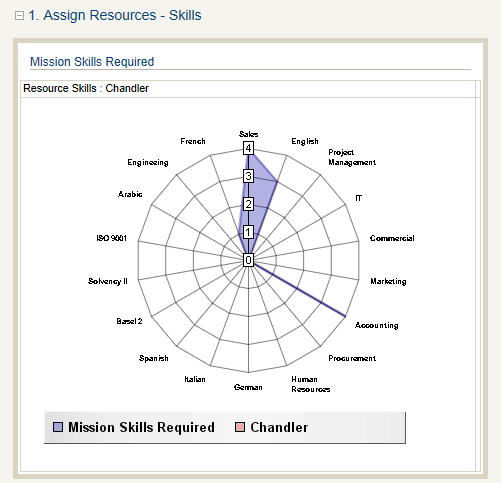
.Two charts present:
• Skills required by the test and skills of the selected resource.
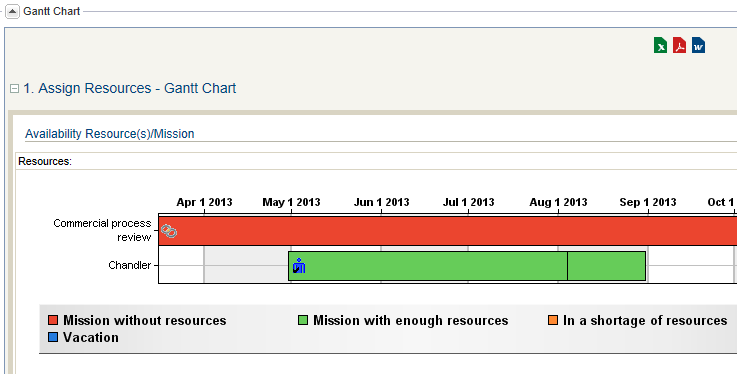
• Availability of the resource on test dates.
The color of the test period depends on the number of resources assigned to it related to the estimated number of resources:
• Green: the compliance test has a sufficient number of resources
• Orange: resources are insufficient
• Red: no resources are assigned
Vacation periods of selected controllers are represented in color blue.
 Both charts should be refreshed separately.
Assigning a resource to a test
To assign a resource to a test:
1. In the Assign Resources tab of the test plan properties, in the top left frame, select the required test.
2. In the frame at top right, select a person.
3. Click the Assign button.
To remove a controller from the test, carry out the same procedure, but click the Unassign button.Specifying a lead controller for a given test
To specify the lead controller on a test:
1. Open the properties of the test concerned.
2. Specify the Lead Controller field.