Database Tables
Database tables can be viewed or updated in two ways:
• In its relational diagram, that is the diagram of the tables in the database.
• In its properties, in the Components page.
The components page displays the database tables.
The name of the associated Data Group is indicated if applicable.
Creating a table
See previously: Database Properties.
To create a table from the properties of the database:
1. Open the database properties window.
2. Click the drop-down list then Components.
3. In the Tables section, click New.
The new table appears. It is named "Table 1" by default.
To rename it:
 Double-click the name of the table and enter the new name.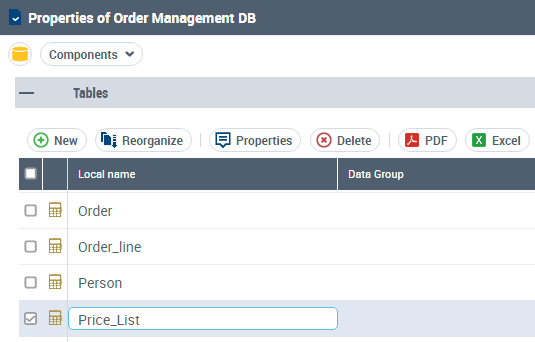
Deleting a table
To delete a table and its columns, keys and indexes:
Right-click the table and select Delete  .
. A message requests confirmation.
 The deleted table will not be automatically recreated at a new synchronization. To recreate a table, at the synchronization results validation step validate the creation action proposed for this table (select the corresponding check box). See Step 4: Validating results.