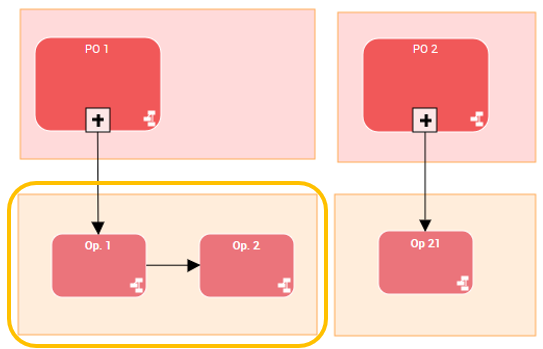
Selecting Elements
Selecting an element
To select an element:
1. In the diagram editing bar, click Select  .
.
.2. Position the pointer on the element.
3. Click.
A shape is drawn around the element, with squares (the handles). These handles allow you to modify dimensions of the element.

If the drawing object selected is a line or a link, then the little squares are called "joints”. Joints are found at the ends of each segment of lines.
 See Handling Lines.
Selecting several elements one by one
With the <Ctrl> key, you can select elements one by one.
To select several elements:
1. In the diagram, click an element to select it.
2. Press the <Ctrl> key.
3. Hold the <Ctrl> key down and click another element to be added to your selection.
4. Repeat the action on each element you want to add.
To unselect one of the elements, hold the <Ctrl> key down and click the element.To select all of the elements of the diagram, press <Ctrl> and <A> keys simultaneously.Selecting all of the elements of an area
With the mouse you can draw an area over the elements you want to select.
To select all of the elements of an area:
1. In the diagram, click a corner of the area you want to draw.
2. Hold down the mouse button and drag the mouse so as to draw a rectangle that includes entirely all of the elements.
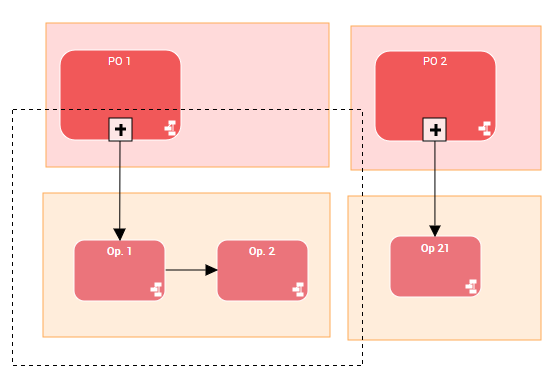
3. Release the mouse button.
4. The elements entirely included in the rectangle are selected.
Example: both “Op. 1” and “op.2” operations and the rectangle at the botom left.