Drawing Lines
Tracing a line
To trace a line:
1. In the object inserting bar, click Graphical object  .
.
.2. In the drop-down menu, select Line.
3. In the diagram, click where you want the line to begin and, holding the mouse button down, drag the mouse.
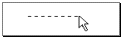
4. Release the mouse button where you want the line to end.
The line is created as a straight line with a handle at each end.

5. (If needed) Modify its style with the shape editing bar of the diagram.
Creating a joint
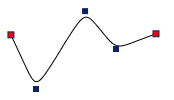
You can segment a line to create a jagged line for example.
To segment a line:
1. Select the line.
2. Position the mouse pointer on the line.
3. Press the <Ctrl> key.
The pointer turns into a + shape.
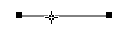
4. Holding down the <Ctrl> key, click and move the pointer to where you want to segment the line.
A joint represented by a handle is added.

5. Holding down the <Ctrl> key, click and move the mouse outside the line to break it.
6. Release the <Ctrl> key.
You can perform this operation as many times as you want. You can then drag the joints to modify the shape of the line.
Deleting a joint
To delete a joint (except at both ends):
 Right-click the joint and select Delete Joint.
The joint is deleted.
Delete all Joints
You can turn a broken line into a straight line.
To delete all the joints:
Right-click a joint and select Delete all Joints.The line turns straight.