Updating Technopedia Objects Imported into HOPEX
At any time you can update information available on software technologies and vendors imported into HOPEX.
To do so:
1. In the Technopedia navigation pane, click Technopedia Vendors or Technopedia Technologies, depending on the objects you want to update.
2. In the edit area, click the Update button.
 If necessary, click
  to display the hidden commands.
You can also define an automatic update.
Technology Automatic Updating and Alerts
Automatic update checks, at a given frequency, if the properties of software technologies imported into HOPEX have changed in the Technopedia repository and updates the corresponding technologies in HOPEX.
Defining Update Frequency
To define an automatic update, you must create a trigger in the Administration Tool that implements the BDNA automatic update macro.
Once the trigger has been created, you can schedule the update in ITPM.
To create the trigger:
1. Open the Administration tool.
2. Open the environment.
3. Unfold the folder of the concerned repository.
4. Right-click Scheduler then select Manage Triggers.
5. Click the Triggers Definitions tab.
6. Click New to create a System Trigger Definition.
7. In the wizard create a System Job Definition that implements the Macro "BDNA Automatic Update Job Implementation".
8. Complete the scheduling.
9. Click Finish.
To define automatic update on technologies:
1. Connect to ITPM as a Functional Administrator.
2. Click the navigation menu, then Administration.
3. Select the Scheduling Management navigation pane.
4. In the edit window, click BDNA Automatic Update.
You can set the alert:
• Daily
• Weekly
• Monthly
Subscribing to Alerts
A user can be notified of updates made on the technologies he is in charge of.
To subscribe to an alert:
1. In the edit window, display the list of technologies.
2. Select the technology concerned and click the Follow button.
button.For more details on alerts, see "Managing Your Alerts on Object Modification", page 524.Support Alert Report
A Support Alert MetaAtribute available on each technology compares the technology life cycle (imported from Technopedia or defined manually) with its life cycle in the organization.
For more information on the Gantt diagram and object life, see Viewing Application Life (Gantt Chart).For more information on the technology official life cycle, see Displaying Technopedia properties in HOPEX.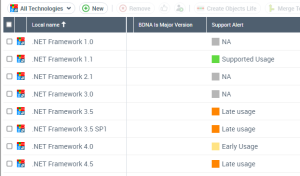
It can have the following values:
• Early life cycle: the technology has a life cycle in the organization which started before the official release date of the software technology.
• Supported usage: the life cycle of the technology begins after the release date of the technology and ends before the end of the support date.
• Delayed use: the life cycle of the technology begins after the release date of the technology and ends before the end of the extended support date.
• Non-supported use: the life cycle of the technology begins after the release date of the technology and ends before the end of the extended support date.
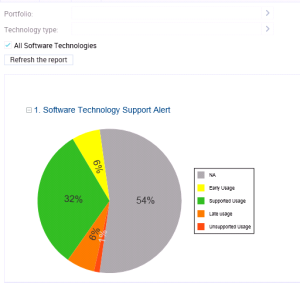
A report uses the Support Alert MetaAttribute to analyze technologies in the HOPEX repository and displays all possible conflicts between the use of these technologies in the organization and their official life cycles.
To generate a Support Alert report:
1. On the IT Portfolio Management desktop, click the navigation menu, then Reports.
This report is also available in the properties of a portfolio.2. Click the Technology navigation pane.
3. In the edit window, click Technology Support Alert.
The report appears in the edit area.
4. Select the technologies you want to analyze:
• Technologies of a Portfolio. You can select an Application or a Technology portfolio. In case of an application portfolio, it analyses the technologies linked to the applications.
• Technologies of a certain Type (Taxonomy).
• All Technologies
5. Click the Refresh the report button.
The report results appear in the edit area.