Defining Life Cycles
The life cycle of an object defines the list of possible object states. Associated with begin and end dates, the life cycle of an application is used when planning the different states of an application during a given period. See Defining Application Life.
Life cycles supplied by default
HOPEX supplies standard life cycles for applications and deployment contexts.
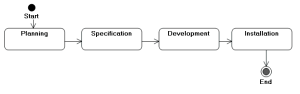
Life cycle of an application
This life cycle describes:
• standard development of an application, whatever it might be.
• states that mark steps in evolution of an application.
This standard life cycle can apply to all applications.
Creating new life cycles
Modifying a standard life cycle impacts data already modeled in the repository. It is therefore a modification that should be restricted to appropriate authorization levels.
To formalize states other than those supplied as standard by HOPEX, it is preferable to create a new life cycle.
A life cycle corresponds to the "State Machine" object. To define a new life cycle, you must create a state machine and associate with it the states and transitions constituting the life cycle.
To create a life cycle with HOPEX IT Portfolio Management:
1. Connect to HOPEX IT Portfolio Management as administrator.
2. Select the Environment desktop, then Libraries.
3. Click the Libraries folder to display repository libraries and associated objects.
4. Click the icon of the library that will contain the state machine, and select New > Others.
5. In the dialog box that appears, select the State Machine MetaClass and click OK.
The Creation of State Machine dialog box appears.
6. Enter the Name and click Next.
The new dialog box allows you to specify the list of object types (MetaClasses) that can be associated with the life cycle created.
7. In the Valid Type section, click Connect.
8. In the dialog box that appears, select the expected object type and click OK.
The list of selected object types appears.
9. Click OK.
The new state machine appears under the State Machine folder of the library.
To create the state diagram associated with the new state machine:
 Click the icon of the state machine and select New > State Diagram.
 For more details on the use of state diagrams, see the guide HOPEX for UML.