Using the HOPEX License Console Manager
Downloading the report regarding the licenses used
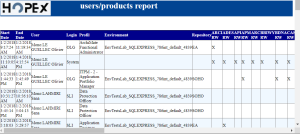
The "users/products report" details the licenses used during all the sessions. It details for each session:
• its Start Date and End Date (mm/dd/yyyy hh:mm:ss format)
• the corresponding User name
• the corresponding user's Login name
• the Profile, Environment, and Repository used for connection
• each license used
To download your license report:
1. Access the HOPEX License Manager Console.

2. In the right pane, click Download Licences Report  .
.
.The users/products report is downloaded in html format.
Defining a default license
When several licenses are available, you can define which of the licenses is the default one.
To define a default license:
1. Access the HOPEX License Manager Console.
2. In the License Manager Console navigation panes, select General View > by licences.
3. In the List of licences pane, select the license row.
4. Click Set as Default.
In the List of licences pane, the license Default value is "Yes".
Viewing which HOPEX license a user is assigned
To view which HOPEX license a user is assigned:
1. Access the HOPEX License Manager Console.
2. In the License Manager Console navigation panes, select General View > by users.
3. In the List of Users pane, select the login of the user you are interested in.
The user's license is indicated in the Licence of <login> pane.