Org-Unit Schedules
Schedules enable definition of an org-unit period of activity. These schedules are valid for all scenarios in which the org-unit participates.
To define a new schedule on an org-unit:
1. Select the org-unit in question.
2. Now select the Cost & Duration tab.
3. Clear the "Use default schedules" option.
 This field will not appear if you are in Beginner mode.
4. Click the New button. 
5. Enter the name of the schedule.
In the properties of this new schedule you can specify:
• If this is a period of activity or inactivity.
• For an activity period, the percentage presence of the org-unit.
Activity schedule example
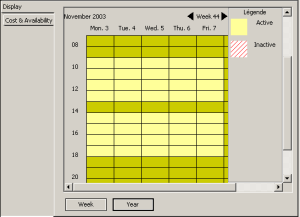
Create a schedule to indicate that an employee works every weekday, from 09h00 to 13h00, and from 14h00 to 18h00.
 To do this, create an "Activity" type schedule.In its properties dialog box, indicate that it is active Monday through Friday, from 09h00 to 13h00 and from 14h00 to 18h00.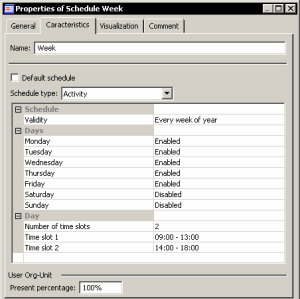
By selecting the Visualization tab, you obtain the corresponding graph:
Inactivity schedule example
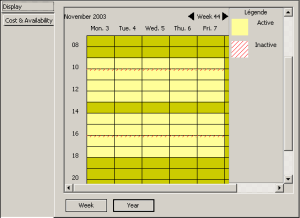
You can create a second schedule to specify break times, morning from 10h00 to 10h15 and afternoon from 16h00 to 16h15.
This is an "Inactivity" type schedule, also operating from Monday through Friday.
The org-unit graph is visualized as follows:
Partial time schedule example
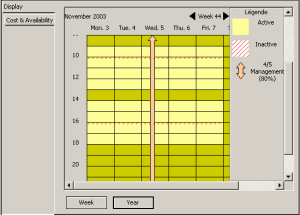
Imagine a third calendar for 4/5 management; according to which the percentage of org-units present drops to 80% on Wednesday.
Create a third schedule on the org-unit.In Present percentage, indicate "80%".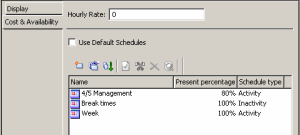 In the schedule properties dialog box, indicate that it is an activity type schedule, "Enabled" on Wednesday only.
You obtain the following:
The presence percentage of org-units on a schedule influences the number of org-units that you may have defined.
If for example you have defined a scenario in which by default 10 employees are available, according to the above schedules, the number of employees is 10 from Monday through Friday, dropping to 8 on Wednesday.