Generator Schedules
Continuous mode
The generator, which corresponds to the process entry point, introduces tokens into the simulation continuously by default.
In standard mode, you can create a Schedule to define the period of activity of the generator. Indicate for example that customer calls to a bank are generated during opening hours, in other words Monday through Friday, between 09h00 and 17h00.
To create this new schedule:
1. In the simulation editor, select the scenario name then the Input Flows tab.
2. Clear the Use default schedules option.
3. Create a new schedule using the New button 
4. Right-click the schedule name and select Properties.
The calendar properties dialog box opens.
5. In Schedule type, select "Activity".
6. Select "Enabled" from Monday through Friday, and "Disabled" Saturday and Sunday.
7. In the Number of time slots field, select"1". This field corresponds to the number of time windows. If you wish to divide the day by a one hour break at noon, you must create two time slots, one for morning and another for afternoon.
8. Then indicate the daily hours.
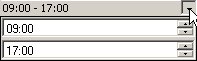
9. When the schedule has been defined, click OK.
Event mode
In standard mode, you can also define input of tokens as a function of Events triggered by a timer. In this case, the generator does not operate according to time slots but to precise moments.
For example, to indicate that 4 tokens are generated every Monday and Friday at 08h00 and 13h00:
1. In the Input flow structure field, select "Several at once at scheduled dates" mode.
2. Create a timer and indicate "4" in the Average quantity per arrival column.
3. Open the timer properties dialog box and select the Simulation tab.
4. In the Validity field, select "Every week of year". This indicates that the timer will operate every week of the year.
5. Select "Enabled" on "Monday" and "Wednesday".
6. Select "Disabled" for the other days of the week.
7. In the Number of events field, indicate the number of triggered events: "2".
8. Then indicate the time at which they occur: "08h00" and "13h00".