Answer types
About answer types
Answer to a question is automatically created except for certain question types that require manual creation of answers. For more details, see Types of Questions to Specify Manually.
Selecting the answer type
In the properties of a question, you can choose the Type of answer that you want to provide in your questionnaire.
 To access questions, see Accessing Questionnaire Elements.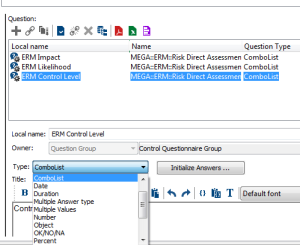
•
Entering your own answer
The types of questions available that can be used to directly enter an answer are listed below.
Text
used to enter text.

String
used to enter a string of characters in a field.
 If you must display your answer in more than one field/row, select the "Multiple answer type" value.
Multiple answer type
Used to display more than one answer fields for the same question.
Example of use: to enter an address you may need several fields.
 This type of answer requires creation of answer values. For more details, see Multiple answer.
Signed number
Enables entry of a negative or positive number.
duration
Used to enter a duration

Number
Enables entry of a number.
Percent
Used to enter a percentage.

select a value
The types of questions available that can be used to select a value using predefined suggestions are listed below.
ComboLists and radio buttons are answers of Enumeration type.ComboList
Used to select a value from a drop-down list.
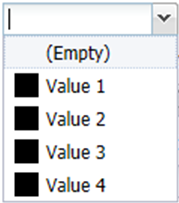 This type of answer requires creation of answer values. For more details, see Answer of Enumeration type (drop-down lists and radio buttons).
Short
Enable entry of a short integer.

Date
Used to enter a date using a calendar

OK/NO/NA
Provides a drop-down list containing three values:
• OK
• NO
• N/A (Not Applicable)
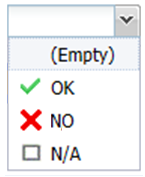
Radio button (vertical)
Used to display vertical radio buttons in the answer.
 This type of answer requires creation of answer values. For more details, see Answer of Enumeration type (drop-down lists and radio buttons).
Connecting HOPEX objects
Respondents can answer a question by referring to HOPEX objects. You can configure your question so as to connect these objects. For this, you must choose one of the following question types:
• "Object": to connect an object
• Multiple values: enables the respondent to connect several HOPEX objects in the answer.
You can specify the minimum and maximum number of objects to be connected.Here the object is stored as an answer.
Object
Displays a menu to connect a single occurrence.

Multiple values
Used to display occurrences of the same object type in a list.
This should not be confused with the multiple answer type.To specify object type of occurrences:
 In the question creation dialog bow, specify the Collection Type field.
Example: If you want the respondent to be able to add attachments when completing the questionnaire, select for example the "Business Document" MetaClass.
The result appears as follows:
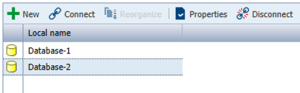
To specify the menu proposed to the user in the questionnaire:
Specify the Capability field.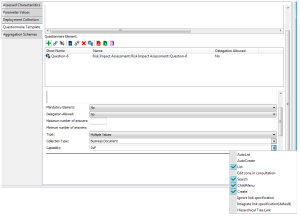
Selecting a check box
The Boolean type is used to display a check box in the questionnaire.