Sending the Notification Letter
After having completed the specifications required for execution of a test, the compliance manager can send a notification letter informing controlled persons of the test.
 For more details on participants, see Users.
Sending this notification letter is not included in the workflow. It precedes the next step in the workflow, which consists of publishing the test. See Publishing tests.
Creating notification letters
To create the test notification letter:
 Click the icon of the test and select Deliverables > Notification Letter.
A message asks if you want to open or save the file. The document presents the comment entered in characteristics of the test.
When the document has been saved, you can open and modify it.
You can also connect it to the test as a business document, under the "notification letters" category.
Connecting the notification letter to the test
The file is generated from test content, but is not connected by default to the test.
To connect the notification letter to the test and make it a business document:
1. Open properties of the test.
2. Select the Documents tab.
3. Click the New button.
The Creation of Business Document dialog box appears.
4. Indicate the business document name.
5. In File Location, click the Browse button.
The File Location dialog box appears.
6. Click Browse and select the file.
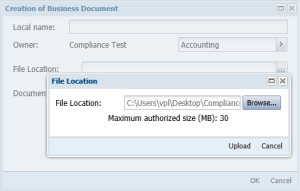
7. Click Upload.
8. In the document creation dialog box, in Document Pattern, select "Notification Letter".
9. Click OK.
The document appears in the list of documents attached to the test.