Following Up Session and Questionnaire Progress
Consulting Session Results
To consult progress of an assessment session:
 Open the properties of the assessment session and select the Reports > Follow-Up tab.
 For more details on this report, see Session Follow-Up.
Validating Assessment Questionnaires
To access the list of assessment questionnaires completed by respondents:
1. In the Compliance desktop, select Campaign Management > Follow-Up > Questionnaires Answered.
The list of completed questionnaires appears.
Note that workflow status has passed to "To Be Validated".
2. Select the questionnaire that interests you and click Display Questionnaires.
Content of the questionnaire appears in a new tab. You can view answers.
3. Close the questionnaire display window.
4. If you consider that the questionnaire has been correctly completed, click its icon and select Assessment Questionnaire (To Be Validated) > Validate.
The questionnaire is closed and results are automatically calculated.
Managing Questionnaires Sent
To access questionnaires as a function of workflow progress:
In the Compliance desktop, select Campaign Management > Follow-Up.Questionnaires are sorted according to stage of workflow progress:
• Questionnaires sent
• Questionnaires answered
• Questionnaires not answered
For more details on content of theses lists, see the HOPEX Common Features guide, chapter "Running Assessments", paragraph "Managing Questionnaires Sent".Asking a respondent to modify answers
If answers to a questionnaire are not suitable, you can ask the respondent to modify these.
To make a modification request:
1. Select Campaign Management > Campaign Management > Follow-Up > Questionnaires Answered.
2. Click the icon of a questionnaire and select Assessment Questionnaire (To Be Validated) > Ask For Modification.
The respondent can modify his/her answers. See Completing Questionnaires.Reassigning questionnaires
If a respondent has made a transfer request, you must reassign the questionnaire.
To reassign a questionnaire:
1. From the list of questionnaires sent, select a questionnaire.
The questionnaires are accessible from different menus according to the desktop used:• With the MEGA solution, you can access the questionnaires using the Campaign Management navigation tab.
• On the assessment questionnaire laptop, the questionnaires are accessible from the My Questionnaires navigation pane.
2. Open the properties dialog box of the questionnaire concerned and select the Reassignment tab.
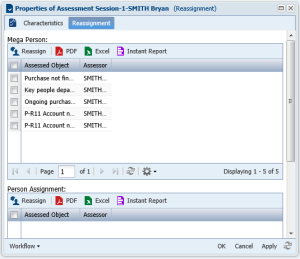 This tab only appears when the questionnaire has "To Reassign" status.
3. Select all nodes to be assessed and click the Reassign button.
4. Using the search page that opens, select a questionnaire and click OK.
If person assignments have been specified (for example, the questionnaire should be sent to a person in the context of a business role in particular), you can reassign the questionnaire in the section provided for this purpose.The new respondent appears in the Correspondent column.
5. Select the icon of the questionnaire and select Assessment Questionnaire (To be Reassigned) > Reassign.
The new respondent receives an e-mail. He/she can complete the questionnaire, status of which is again "In Progress", then submit answers.
Viewing assessment campaign reports
Reports specific to assessment campaigns are available. For more details, see Requirement Assessment Reports.
Results from "Assessment of Risks by Regulation/Requirement" assessment template
To view the results of assessment campaigns with "Assessment of Risks by Regulation/Requirement" as template:
In the Legal Inventory navigation tab, select Reports > HeatMap per Entity/Risk Type/Process.Results of "Assessment of Requirements by Regulations and Processes" assessment template
Results of campaigns with "Assessment of Requirements by Regulations and Processes" as template are visible in the following reports:
• Assessment of control level by regulation and process
For more details, see Control Level Assessment by Regulation and Process.• Process Compliance
For more details, see Process Compliance.• Residual Risk Report
For more details, see Residual Risk Report.To access these reports:
In the Reports navigation tree, expand the Testing folder.