Creating Assessment Campaigns
 A campaign enables grouping of several sessions.
You can create an assessment campaign:
• From a template
Creating a campaign from a template allows:
• use of the same template in all assessment sessions.
• definition and planning of sessions by distributing elements to be assessed between different sessions.
• without a template
In the case of creation of a campaign without using a template, a template can be specified at the time of creation of each session.
 This section presents assessment campaign creation using the "Control Assessment" assessment template supplied as standard. Possibilities offered by assessment campaigns without using a template are described in the HOPEX Common Features guide.
To create an assessment campaign:
1. In the Control desktop, select Assessment Campaigns > Campaigns > Campaigns > Campaigns.
The list of campaigns appears in the edit area.
2. Click New.
The campaign creation page appears.
3. In the Campaign Type field, select "With Template".
4. Select the "Control Assessment" Assessment Template.
5. Modify the Calendar if required.
The calendar serves to initialize begin and end dates of the assessment campaign. 6. Specify the Begin Date and the End Date.
7. Click Next.
8. In the Scope Selection page, select an entity.
The tree automatically expands if the Automatic Expand box is selected.The tree allows you to select controls assessed in their context.
An object is assessed in the context of elements of the branch from the object up to the root.
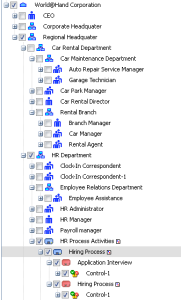
In the above example, if you select the "Manage Human Resources" process, all controls and context objects located at a lower level are selected, as well as all parent context objects up to the tree root.
If you deselect a node of a branch, only the child elements of this branch are deselected.9. Click Next.
10. In the preview window, click Refresh the Report.
Elements that will be assessed appear.
In particular, you can view:
• assessed characteristics (defined in the assessment template)
• assessed objects (controls)
• context objects (processes or entities)
• assessment nodes which correspond to controls placed in their context objects, associated with respondents.
11. Click OK.