Managing lists
Repository objects are often presented as lists of objects of the same type.
In the lists, you can configure the columns and define filters on the columns.
Defining the columns to be displayed
Each column corresponds to an object characteristic.
To display or hide one or several columns:
1. In your HOPEX desktop, access the list of objects.
2. Roll the mouse over the header of the column concerned.
The arrow of a drop-down menu appears to the right of the column title.
3. Click the arrow and in the drop-down menu, roll the mouse over the Columns and select the columns that you want to display.
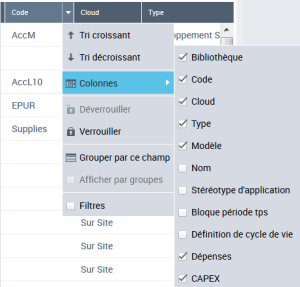
 To hide a column, clear the corresponding check box.
Modifying the column order
To modify the column order:
1. In your HOPEX desktop, access the list of objects.
2. Click in the column header and drag-and-drop the column to the required location.
A green cursor indicates that the chosen position is authorized.
To return to column initial display order, roll the mouse over a header column and in the drop-down menu select Default column order.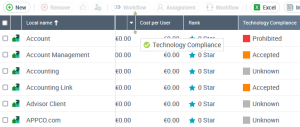
Filtering data
In an object list you can quickly filter data of one or several columns.
You can, for example, filter the objects of a list to display only the objects whose specific characteristic contains a string of characters with a specific character.
Operators available on a character string:
•  : to show values including the character string
: to show values including the character string•  : to show empty values only
: to show empty values only•  : to show non empty values only
: to show non empty values onlyOperators available on a number or a date:
•  : to show values equal to
: to show values equal to•  : to show values greater than
: to show values greater than•  : to show values lower than
: to show values lower than•  : to show values between two values
: to show values between two values• : to show empty values only
: to show empty values only• : to show non empty values only
: to show non empty values onlyTo define a filter on a column:
1. In your HOPEX desktop, access the list of objects.
2. Click Display Filters  .
.
.Fields appear under the header of each column.
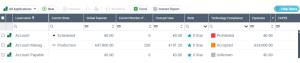
3. (if needed) In the field of the column that you want to filter, click the operator and select another operator.
4. In the field of the column that you want to filter, depending on the case:
• enter a string of characters.
• select one of the proposed values.
• enter a number.
The list of objects is automatically filtered according to the filtering criterion defined for the column.
The title of the column that contains a filtering criterion is highlighted.
You can add as many filters as columns.For example, to the list of applications, you can filter applications whose:
- "Current state" includes the "product" character string
- "Number of users" is greater than 0
- "Technology Compliance" is "Prohibited".
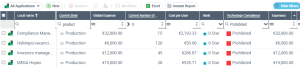 To remove the filter from a column, in the filter field, click
  .To remove the filtering from all the columns, at the end of the filtering field row, click Delete All Filters
  .
.Grouping data by field
In an object list, you can group the objects that have an identical attribute value.
To group objects:
1. In your HOPEX desktop, access the list of objects.
2. Roll the mouse over the header of the column that corresponds to the attribute concerned.
The arrow of a drop-down menu appears to the right of the column title.
3. Click the arrow and select Group by this field.
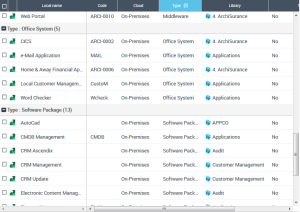
The objects are grouped. A group separator line is added and specifies the value of the group and the number of objects with this value.
The Display in groups box is selected.
To disable presentation in group mode, in the group column, clear Display in groups.In the list of applications, you can, for example, group applications with the same type.
Freezing a column
In a list, by default, the columns are presented in the following order:
• check box
• icon of the object type of the list
• Local Name
The column scrolling cursor is positioned at the level of the first unfrozen column (by default after Local Name).
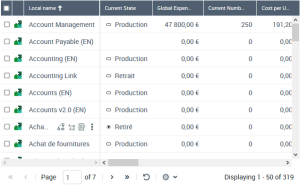
If necessary, you can position one or more columns directly to the right of the Local Name column. To do this, you must freeze the column.
To freeze a column:
1. In your HOPEX desktop, access the list of objects.
2. Roll the mouse over the header of the column concerned.
The arrow of a drop-down menu appears to the right of the column title.
3. Click the arrow and select Freeze.
The column is moved to the right of the Local Name (or to the right of the last column already frozen)
The scrolling cursor is positioned after this column.
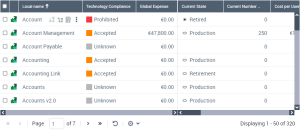
To disable freezing of a column, select Unfreeze or move the column.You can, for example, place the Technology Compliance and Global Expense columns directly after Local Name so they remain displayed when you view the other columns. The column scrolling cursor is positioned at the first unfrozen column level (after Global Expense).
Mass modification of the data in a list
HOPEX can be used to assign the same attribute value to several objects in a list.
To assign the same attribute value to several objects:
1. In your HOPEX desktop, access the list of objects.
2. In the list, select the objects concerned.
3. In the column of the attribute concerned, specify the new value in one of the fields of the selected objects.
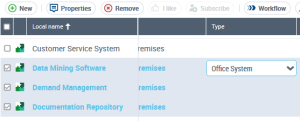
The new value of the field is assigned to all selected objects.