Using the Validation Request Workflow
The diagram that illustrates this validation request workflow is shown below.
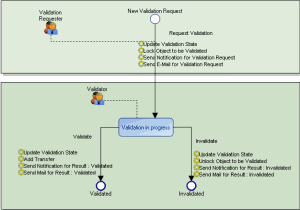
In this workflow, a requester makes a request for validation. The request then passes to status Validation in Progress.
A reviewer analyzes the request for validation. He can:
• validation
• invalidate
 This workflow offers simple implementation of validation requests. You must configure it so that it responds to the requirements of your enterprise.When validated, the object can be transferred to another repository if required. For more details, see Transfering Objects.
Requesting validation
To request validation of an object:
1. Right-click the object concerned and select:
• (Windows Front-End) Administer > Validation > Request Validation.
• (Web Front-End) Administer > Request Validation
The location of the menu can vary if customized. For more details, see Customizing the Validation Workflow.2. In the dialog box that appears, enter a comment to accompany your request and click Next.
3. Select a person to be assigned if your workflow requires this and click Finish.
The object subject of a request fro change can no longer be modified. A padlock appears alongside the object.
If you are in metamodel expert mode in HOPEX Windows Front-End, the Immutability value of the object to validate properties dialog box, General sub-tab, is "Protected".Validating the object
To validate the object subject of a request for change:
1. Right-click the object and select:
• (Windows Front-End) Administer > Validation (Validation in Progress) > Validate.
• (Web Front-End) Administer > Request Validation
The location of the menu can vary if customized. For more details, see Customizing the Validation Workflow.2. In the dialog box that appears, enter a comment if required and click Finish.
You can also associate a transfer at this stage. For more details, see Transfering Objects.The object is protected. If you want to modify it, you must first unlock it.
Right-click the object and select Manage > Unlock Object. If you do not have the necessary rights to unlock the object, you can request unlocking. For more details, see Making an unlocking request. Refusing object validation
To refuse validation of the object subject of a validation request:
1. Right-click the object and select:
• (Windows Front-End) Administration > Validation > Invalidate.
• (Web Front-End) Validation > Invalidate.
The location of the menu can vary if customized. For more details, see Customizing the Validation Workflow.2. In the dialog box that appears, enter a comment if required and click Finish.