Modifying Shape Fill
You can fill your shapes with plain color, shading or a pattern.
The Fill frame in the Graphical options dialog box allows you to select a fill color, shading and pattern for shapes.
Selecting a color
When objects cover other objects, color No fill allows you to view elements in the background.
To select a color:
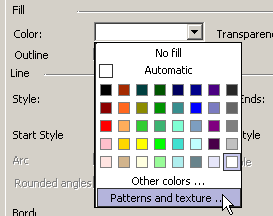
 Click the desired color in the Color group box.
If a suitable color is not displayed, you can refine selection by selecting:
• Other colors...
HOPEX offers a range of 16 million colors (for borders, fonts, texts, etc.).
In the color picker that opens, click the desired color or enter values in the Shade, Saturation, Brightness, Red, Green and Blue boxes. You can drag the slider to adjust the luminosity of the currently selected color.
• Shading and Pattern (see below)
Applying shading and pattern
Shading
• Colors
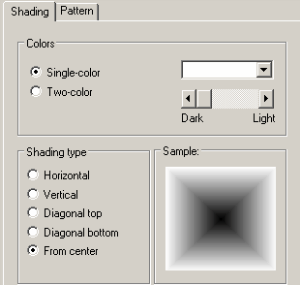
• Single-Color: fills the selected object with single color shading that can be modified between extremes of black and white. Click the desired color in the Single-color drop-down box, then drag the Dark/Light button to adjust its brightness.
• Two-Color: fills the selected object with a color that gradually changes to another color. Click the desired colors in the Single-color and Two-color drop-down boxes.
• Shading type
The "Sample" box lets you see the selected shading type.
• Horizontal
• Vertical
• Diagonal top
• Diagonal bottom
• From center
Pattern
Click the desired fill pattern.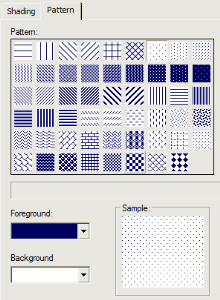
To modify pattern color:
Click the new colors desired in the Foreground and Background drop-down boxes.Managing transparency
HOPEX enables management of transparency of graphical elements.
In the Transparency box, select or enter a value.The transparency percentage indicates the degree of transparency (or conversely the opacity) of fill.