Handling Links Between Objects
Creating links
To interconnect objects:
1. In the insert toolbar, click Link  .
.
.2. Click the first object and, holding the mouse button pressed, draw a link to the target object.
Changing target of a link
You can easily modify the target of an object, that is the object to which this object is connected.
To change target of an object:
 Select the end of the link, then holding the <Shift> key down, move the link to another target object.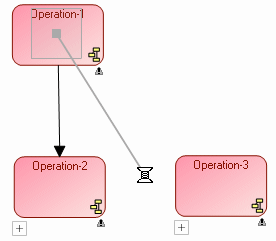
 This action allows you to retain the characteristics of the link.
Modifying link appearance
Links in diagrams behave like lines: it is possible to modify their shape, appearance, etc. Links are obviously attached to the objects that they connect.
For more details on the lines, see Handling Lines.Moving a link text
For certain links, text zones can be displayed (for example, for cardinalities). It is possible to modify the position of the text with respect to the line by selecting the text zone and dragging it along the line. Possible movements are necessarily limited so that the text remains attached to the link. This function allows the text to be positioned above, below or on the line.