Exporting Diagrams to PowerPoint
HOPEX enables creation of a Powerpoint file containing a set of diagrams related to an object.
To start the export to PowerPoint tool:
1. Right-click an object and select Documentation>Export Diagrams.
The export wizard appears.
2. In the Summary Line Number, indicate the maximum number of lines for a summary page.
You may indicate 10 for the number of lines. If the summary contains 33 lines, 4 pages will be created (10+10+10+3).
3. In the Name of PPT File field, specify the location (for Windows Front-End) and the name of the PowerPoint file to be generated.
4. Select the export mode:
• All Diagrams: all diagrams in which the object appears are exported. In the next window, indicate:
• The Deep level needed to retrieve diagrams.
All diagrams linked directly to the object are retrieved. From these diagrams it is possible to retrieve the objects connected. Depth level is 2 by default. 0 corresponds to an infinite number of levels (except if the initial diagram is found in the tree at some point).
• The Diagram Natures of interest.
• Select Diagrams: you can select the diagrams you want to display in the PowerPoint file.
5. Click Next.
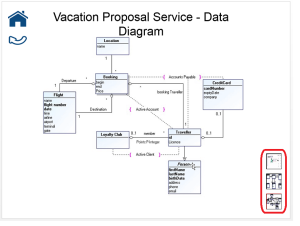
The PowerPoint diagram is generated. It contains a set of slides allowing navigation in diagrams, for instance:
• a summary page
• pages for each diagram
When an object is described by several diagrams of different types (of same level), an overview of diagrams is displayed on the bottom right hand side of the selected diagram page.
The  button allows display of the previous page in a series of slides (and not the diagram page that was last viewed).
button allows display of the previous page in a series of slides (and not the diagram page that was last viewed).