Configuring the text of a graphical shape
Modify the textual characteristics of a shape
For example, you can choose to display Short Name of an Organizational Process in a diagram.
To access textual characteristics of a graphical shape:
1. Right-click the shape concerned and select Shapes and Details.
2. In the window that appears, click on of the characteristics proposed in the tree on the left.
For example: Short name
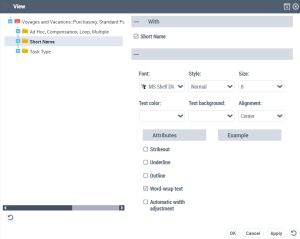
3. In the right part of the window, you can select, or unselect, the check box corresponding to the object Short name.
 With HOPEX Windows Front-End, the right pane displays two tabs: the Content tab used to select the fields that are displayed in the shape and the Font tab used to modify characteristics of the font used by the shape.
4. Click OK.
If you have customized the size or the font of the text associated to the shape, these options will remain unchanged on shape modification.
With HOPEX Windows Front-End, you can restore the shape default parameters:
1. In the diagram, right-click the shape and select Shapes and Details.
The Display dialog box opens.
2. Select the check box Apply default size restore the default size of the text associated to the shape.
3. Select the check box Apply default font restore the default font of the text associated to the shape.
Modifying Text Fields Position
You can modify the position of object text fields that can be placed in a diagram.
Eg: the text field of a site.
You can thus choose to position the text box on top, on the bottom, to the left, etc.
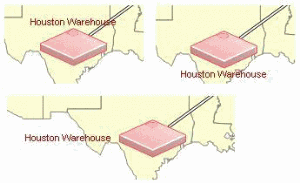
To modify the position of a the text field of an object:
 Right-click the text field, select Position and the desired position.