Creating Ad-Hoc Assessment Sessions
Ad-Hoc assessment session creation mode allows you to explicitly define objects characterizing the scope of your session.
To create an assessment session in Ad-Hoc mode:
1. Create a session following the first two steps of the procedure Creating Assessment Sessions From an Existing Template.
2. Select Ad-Hoc mode:
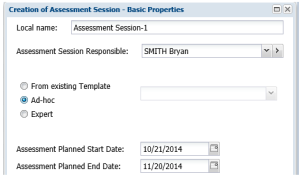
3. Click Next.
4. Complete each of the sections with the objects that interest you:
• Assessed Characteristics
 An assessed characteristic defines what the assessment seeks to assess. It can be associated with a MetaClass, and more specifically with one of its MetaAttributes, for example: Risk MetaClass, MetaAttribute: Criticality.
• Assessed Objects
The Connect button allows you to select objects by filtering these by assessable object type.
• (Optional) Context Objects
A context object is an object in the framework of which the assessment is carried out. For example, a risk can be assessed in the framework of an entity, a control can be assessed in the framework of a process).• Assessors: you may select a Respondent as well as Person Assignments.
A respondent is a person in the enterprise questioned in the context of the assessment. This person should complete the assessment questionnaire and return it. Person assignment enables specification of the profile to which you wish to address the questionnaire when the same person has several profiles. For example, if a person is both "ERM Business User" and "IC Business User", you may wish to send the questionnaire only in the ERM desktop when assessing risks.
 5. Click Next.
6. Create a Questionnaire Template.
You cannot connect existing questionnaire templates.A questionnaire template represents definition of questionnaire content: question group, questions, unique or multiple answers and possible answers. It can be associated with a questionnaire presentation specifying display options. The questionnaire template is defined either at assessment template level or assessment session level. Questionnaires sent to respondents are generated from the definition supplied in the questionnaire template.For more details, see Questionnaire Contents.7. In the dialog boxes that follow, you can:
• specify the Quotation Rule to be applied.
For more details, see Quotation Rules.• refine questionnaire template presentation
For more details, see Defining Questionnaire Presentation.8. Click OK.