Contextualizing Risks
HOPEX Enterprise Risk Management enables you to connect easily the risks and objects to which they relate: an entity, a process.
To contextualize risks, three possibilities are proposed:
Using lists to contextualize risks
To connect a list of risks to an object:
1. Select Risk > Risk Library > Contextualization > Contextualization > List View
In the edit area, you will find:
• on the left, this list of risks
• on the right, the contextualization trees
2. Expand the folder of the object type that interests you, for example Risks by Entity and select the entity that interests you.
3. In the left of the edit area, select the risks that interest you.
4. Holding the right-hand mouse button down, drag the selected risks under the entity to which you want to connect them.
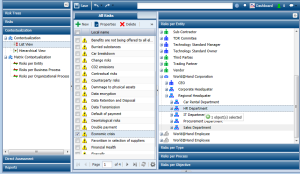
The list of selected risks appears on the right, under the selected entity.
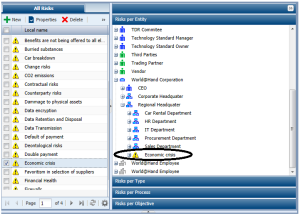
Using trees to contextualize risks
Contextualization trees allow you to ensure consistency between risks connected to objects of different types.
If for example you want to connect risks relating to an organizational process to the entity responsible for implementation of this process:
1. Select Risk > Risk Library > Contextualization > Contextualization > Hierarchical View
Two contextualization trees appear right and left of the edit area.
2. In the contextualization tree on the right, select for example Risks by Processes and expand the tree to display the risks connected to the process that interests you.
3. In the contextualization tree on the left, select for example Risks by Entity and expand the tree to display the entity that interests you.
4. Select the risk that interests you and holding the mouse button down, drag the selected risk under the entity to which you want to connect it.
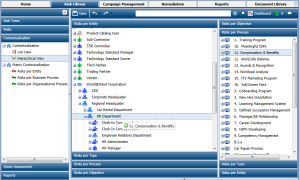
Using a matrix to contextualize risks
You can use a matrix to connect risks to:
• entities
• business processes
• organizational processes
• business lines
• applications
To connect risks to entities:
1. Select Risk > Risk Library > Contextualization > Matrix Contextualization > Risks by Entity.
2. At the top of the edit area, click command Add Line.
3. In the dialog box that opens, click  .
.
.4. Select the risks that interest you and click OK.
The selected risks are displayed as rows in the edit area.
5. Proceeding in the same way, select the entities by clicking Add Column.
The selected entities appear as columns in the edit area.
6. If you click in the empty cell at the intersection of risk and entity, you connect the risk to the entity.
The symbol  appears in the cell.
appears in the cell. In a similar way you can disconnect a risk from an entity.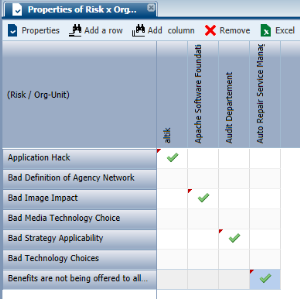
To disconnect a control from an entity:
 In the matrix, click again in the cell concerned.
The green tick disappears. The link between risk and entity is deleted.