HOPEX ArchiMate Desktop Presentation
HOPEX ArchiMate provides its own Working Environment Template desktop, which provides:
• Access to ArchiMate Models and their elements in treeview (see Models > ArchiMate Model Tree),
• Access to ArchiMate EA Elements inventories,
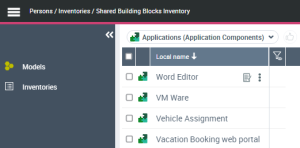
 To access to the shared inventories and relationships, select Models > Inventories,
• Specific property pages for ArchiMate Elements (on the right side of the screen).
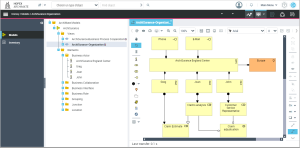
HOPEX ArchiMate Desktop
Presenting the ArchiMate Enterprise Architect workspace
The ArchiMate Enterprise Architect creates Enterprise Architectures Models.
The ArchiMate Enterprise Architect has access to the following panes:
• Home and To-Do-List that are common to all HOPEX solution users.
• Reports: produces access to all reports, improving understanding of models.
• Models that provides access to ArchiMate objects and ViewPoints.
The Models pane
The Models pane provides access to the following menus:
• Models, to access the ArchiMate model, its views and the object used.
For more information on an ArchiMate model creation, see Starting with HOPEX ArchiMate.• Inventories, to access the shared objects inventories.
The shared objects can be shared across ArchiMate Models and with other HOPEX products. For example, Applications inventory is shared with HOPEX IT Portfolio Management and can be used by Application Components in an ArchiMate Model.
Presenting the ArchiMate Functional Administrator workspace
The ArchiMate Functional Administrator has rights on all objects and Architectures. This profile prepares the work environment and creates elements required for management of projects. He manages:
• Enterprises.
• Users, assignment of profiles and access rights.
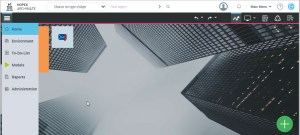
The Environment pane
In addition, the ArchiMate Functional Administrator profile, he has access to the Environment pane to create enterprises and allocate users to working environments.
The Environment pane provides access to the following menu:
• Standard Navigation, to access the management functionalities for libraries and environments.
For more details on libraries, see Enterprises and libraries.The Models pane
In addition, the ArchiMate Functional Administrator profile, he has access to Viewpoints tile of the Inventories menu to define viewpoints selecting which MetaClasses (Concepts: Element or Relationships) are available on the viewpoint.
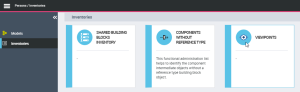 For more details on viewpoints properties, see The properties of a viewpoint.