Report Data View properties
The following properties are common to both types of Report Content:
• Report Matrix View
• Report Table View
Characteristics
Report Matrix and Table Views show the same Characteristics page, including:
• Sharing:
• "Public" (default): the Report Data View can be reused in several reports. The Report Data view is available at Report Template or Report Chapter creation.
• "Private" : the Report Data View cannot be reused.
• Display, which defines the display associated with the Report Data View:
• "Table"
• "Graphic"
• "Graphic and table"
Filters
Report Matrix and Table Views include the same Filters page, which enables to define which filters can be displayed in a report for this Report Data View.
A filter enables to restrict a Report DataSet column values, which are considered in the report. This Report DataSet column is not necessarily part of the report.
Characteristics
Each filter is defined by the following Characteristics:
• Visibility enables to hide the filter when it is fed by another filter or to display its value only.
• Object Edition Mode defines how objects are displayed and whether they are editable or not.
I.e.: Menu, In-Place Edit, No Edition.
• Behavior defines the filter action on the report:
• "Immediate Refresh" (for a report easily calculated): as soon as the user modifies the filter the report is updated.
• "No Refresh": the user needs to click the Refresh button to update the report.
• Input type defines how the report user can define its condition:
• Single value
• "Multiple values" when the column includes a restricted number of values.
• "Continuous" to define a range of values.
The condition is also column data type dependent.
Text
In Text, _Settings tab enables to define:
• an initial value
An initial value is the default value on report opening.
The user can modify the value.
paragraph [default Value]
• a candidate value
Candidate values are the values the user can use for a specific filter.
paragraph [Candidate]
The paragraph content depends on the filtered data type.
For a filter of type:
• Occurrence, the values are defined either by:
• an object defined a conventional variable:
Value = &CurrentXXX
Example: Value=&CurrentUser
• an object list explicitly defined in field form:
Value = ~object1,~object2,…
• a set of occurrences obtained by applying a condition on the DataSource item occurrences
Value="Character string"
All of the occurrences, whose short name includes "character string".
• a set of occurrences retrieved by a query execution
Query = ~Query quoted : the values retrieved by the quoted query.
If the query does not include a parameter it is executed straight away, else the included parameter is valued by the report parameter quoted in the Parameter variable.

Queries including more than one parameter are not exploitable.
Parameter = ~Parameter
Defines the report parameter which enables to value the query parameter.
• Tabulated value attribute, the values are defined either by:
• a list of internal values explicitly quoted
Value=value1, value2, ...
Example: certain values of a multivalued attribute.
• a set of values obtained by applying a condition on the attribute internal values (numerical values)
ValueInferiorTo="Numerical value"
ValueSuperiorTo="Numerical value"
• Date, the values are defined either by:
• an object defined by a conventional variable
Value = &CurrentDate
• a list of dates explicitly quoted (Mega internal format for dates)
Value = 2016/15/25,...
• a set of dates obtained by applying a condition on the DataSource item occurrences
ValueInferiorTo="date" : all the dates < to the date.
ValueSuperiorTo="date" : all the dates > to the date.
• Numerical, the values are defined either by:
• a list of explicit values
Value=12,200,3000
• a set of values obtained by applying a condition on the DataSource item occurrences
ValueInferiorTo="Numerical value"
ValueSuperiorTo="Numerical value"
Style
All the Report Data View types include the same Style page, which enables to:
• define the style to apply to the Report Data View
• have a picture of the Report Data View items on which a conditional style is applied.
Matrix (Report Matrix View)
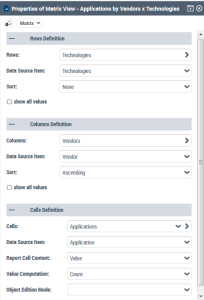
The Matrix page is specific to Report Matrix views. This page defines the matrix content, i.e. the data source columns on which is based the matrix:
• In Rows Definition and Column Definition sections:
• Rows and Columns attributes define the content of all the rows and columns displayed in the matrix. The displayed data is provided by a Report data Source Element.
• Data Source item attribute defines the Report Data Source Element, which provides the data.
• Sort attribute defines which sorting is applied to the row/column.
• Show all values attribute defines if all the column possible values are displayed in the report. It is used only when rows or columns match a set a known values.
• In Cells Definition section:
• Cells attribute defines the content of all the cells displayed in the matrix. The displayed data is provided by a Report Data Source Element.
• Data Source item attribute defines the Report Data Source Element, which provides the data.
• Report Cell Content attribute defines what is displayed in the cell.
I.e.: Value, Check mark, or details of objects.
• Value computation attribute defines which computation is applied to the set of values grouped in the cell. It operates only for cells with numerical values.
I.e.: Average, Count, Max, Median, Min, or Sum.
• Object Edition Mode attribute defines how objects are displayed and whether they are editable or not.
I.e.: Menu, In-Place Edit, No Edition.
Bar Chart (Report Matrix View)
The Bar Chart page is specific to Report Matrix views for which the Chart type is "Bar chart". This page defines which matrix element defines:
• the chart axes
• the chart legend
Table (Report Table View)
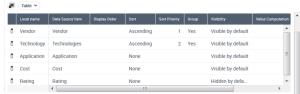
The Table page is specific to Report Table views. This page defines the table content through the following parameters:
• Data Source Item: to define the data source columns on which is based the table.
• Display order: to define the column appearance order (if not specified, the row order is considered).
• Sort and Sort priority: to define the sorting direction and in which order it is applied.
• Group: to merge the pre-sorted set of cells showing the same value.
• Value Computation: to define a computation when the tab includes a grouping.
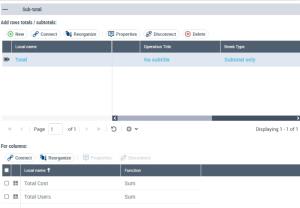
the Sub-total section defines the sub-total or total rows that have to be added to the table:
• Add rows totals / subtotals
Each sub-total row includes the following attributes:
• Subtitle: to add a subtitle, regarding the column, in the break. You can define the title ("Given subtitle") or keep the automatic title ("Automatic subtitle" which is defined from the computation function name). Default value is "No subtitle".
• On column value change: defines on which value break the row appears
• Break type: defines where the row appears ("Subtotal" or "Subtotal and grand total")
• For columns
On the row you can display several computation results performed on each column including numerical values.