Creating a Report Template
You can create a Report Template using:
• a Report Data View
• a macro
• an Instant Report
Creating a Report Template using a Report Data View
You can create a Report Template right away including a Report Chapter with a Report Data View saved in the Public Report Data Views folder.
Prerequisite: your Report Data View is created.
To create a Report Template using a Report Data View:
1. Access the Report Templates folders.
2. Right-click the sub Report Template folder in which you want to store your Report Template, and select New > Report Template.

For example, to keep your Report Template private: right-click
Private Report Template > My Report Templates.
The Basic Properties page appears.
3. In the Name field, enter your Report Template name.
By default the Report DataSet Definition name is : Report Template-x (x is a number).
4. In the drop-down list select the Report Data View you want to fill your first chapter with.
5. Click OK.
The Report Template is created with a single chapter based on the Report Data view selected.
You can:
• add other chapters.
• customize the Report Template.
Creating a Report Template using a macro
To build your report chapters, you can use an existing macro on condition that parameters are compatible.
To create a Report Template from scratch:
1. Access the Report Templates folders.
2. Right-click the sub Report Template folder in which you want to store your Report Template, and select New > Report Template.
For example, to keep your Report Template private: right-click
Private Report Template > My Report Templates.
The Basic Properties page appears.
3. In the Name field, enter your Report Template name.
By default the Report DataSet Definition name is : Report Template-x (x is a number).
Example: Application
4. Click Next.
The Parameters definition wizard appears.
Parameter definition indicates the input data type the user must enter for the report calculation (e.g.: Applications).
Do not define any parameter if you want the report to be launched without requiring the user to select any input objects.
For each parameter define the available object type that can be instantiated for the report (parameter with HOPEX objects or with simple types).
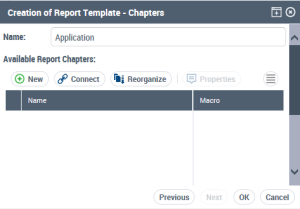
5. Click Next to continue the Report Template definition:
The Chapters definition wizard appears.
6. Click
New 
.
Else click
Connect.
To build your report chapters, you can use an existing macro, provided that parameters are compatible.
MEGA provides in particular the " Analysis - Set of Parameters" macro, which describes report template parameters and the way in which they are interpreted by the report chapter.
Macros have a comment available in the form of a system note.
7. In the Name field, enter the Report Chapter name.
8. In the Based on field, select "Macro".
9. In the Macro drop-down list select the macro.
10. In the Macro field, click the arrow and select Create Macro.
If the macro is already created, select the macro in the drop-down list and click
OK.
11. Select Create a Java Macro and click Next.
12. In the Setup JAVA Macro:
• In the Class Name field, enter the class defined in Eclipse when developing the Java macro.
• In the Package Name field, enter the macro path.
Example: "com.mega.modeling.analysis.reports" for those supplied by MEGA.
13. Click OK.
The macro name appears in the Macro field.
The macro appears in the Report Template tree, under the Report Chapter concerned.
Creating a Report Template from an Instant Report
In HOPEX Power Studio, you can create a Report Template from an Instant Report.
To create a Report Template from an Instant Report:
1. From the Instant Report, click Save as Report.
2. In the Name field, enter a name for the Report Template.
A report is created and its Report Template is also automatically created. They both have the same name:
• The Report Template is accessible from Reporting > Report Template Definition: Report Templates > Private Report Template > My report Templates folder.
• The report is accessible from Reports > My Reports.