Associations Between Use Cases: Extension and Inclusion
When the system to be described is large, it is useful to have modeling mechanisms that can be adapted to the desired level of detail. Associations between use cases provide this ability.
When a use case includes too many alternatives and exceptions, these are represented separately as relationships that extend the standard use case.
Inclusion relationship
One use case can be called automatically following another, for example validation of an order necessarily includes selection of a means of payment.
To indicate that one use case includes another:
1. In the use case diagram, click the
Uses Use Case button

2. Click the use case, for example “Process Order" and drag the mouse to the case used, for example “Choose Payment Mode" before releasing the mouse button.
The link appears in the diagram, labeled “Include”.
Examples of inclusion
In a training establishment, the following use cases:
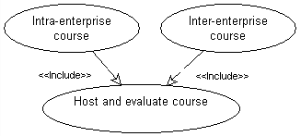
• Inter-enterprise course (where the participants come from several different companies)
• Intra-enterprise course (where the participants all come from the same company)
can both include the following use case:
• Host and evaluate the course
Extend Relation
One use case can result in execution of another. Unlike inclusion, which is automatic, extension is optional.
To indicate that one use case is an extension of another:
1. Click the
Extension button

2. Click the use case, for example "Consult Catalog" and drag the mouse to the extension case, for example "Process Order" before releasing the mouse button.
The Creation of Extension dialog box appears. You can define a constraint or an extension location.
3. Click Finish.
The link appears in the diagram, labeled “Extend”.
Extension example
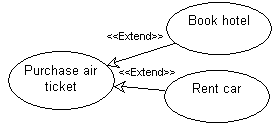
The purchase of an airline ticket can also include booking a hotel room or renting a car.
Extension point
The extension can intervene at a precise point in the extension case. This point is called the extension point.
To create an extension point on the extension case:
1. Open the properties dialog box of the extension use case.
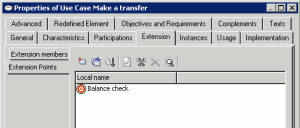
2. Select the Extension tab and then the Extension Points subtab.
3. Click the New button.
The extension point appears in the properties dialog box. You can rename it.
An extension point can be associated with a constraint which indicates the moment at which the extension intervenes. You can add a constraint at creation of the extension or later, in the extension properties dialog box.

A constraint is a declaration that establishes a restriction or business rule that must be applied on execution of processing.
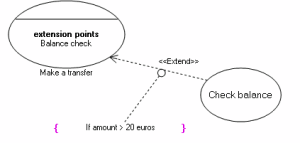
Extension point example
The following example presents the use case of a bank transfer; above a sum of 20 euros, customer credit check is triggered.