Selecting Audits To Be Executed
HOPEX Internal Audit provides the audit director with decisional help in selecting audits to be executed.
A report enables evaluation of coverage of risks, processes and entities in the audit process.
You can sort audits according to certain criteria, in order to:
• view past audits
• find audits planned but not finally executed
Viewing the audit coverage report
HOPEX enables description of entities, risks and processes. It is often necessary to audit these regularly.
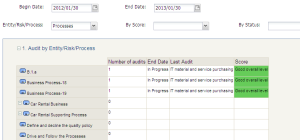
A report provides information on the number of audits executed on each entity, risk or process between two specified dates. It indicates elements that need to be audited.
The audit director can access this report.
To access this report:
1. In Audit > Decisional Reports, click Audit Coverage.
2. In the edit window, select a begin date and end date.
3. Select the object type, depending on whether you want to study coverage of risks, processes or entities.
4. If required, select the score obtained by the audit or its status.
5. Refresh the report by clicking the
Refresh button

at the bottom of the report.
For each audited object (below, processes), the report presents:
• The number of audits executed
• The name of the last audit
• The effective end date of the audit or its state if the audit is in progress
• The score of the audit.

The audits that appear in the report are those that have at least been publishes.
Objects covered by an audit are those connected to the audit
Scope. See
"Audit scope".
For risks covered by an audit, we must also define the type of risk to which they belong in order that they appear in the report. In this report risks are classified by risk type. These types of risk are defined by the administrator in the audit environment.
Consulting audits history
Consulting the history of audits can simplify your choice of audits to be executed.
HOPEX Internal Audit can help you to find:
• past audits
• audits that have not been executed.
Past audits
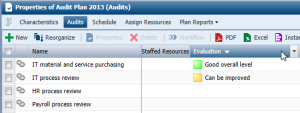
In the list of audits of an audit plan, you can consult the evaluation of the audit that has been made by the lead auditor.
You can sort audits based on this criterion, allowing you to create audits on appropriate entities, risks and processes.
To group audits by evaluation:
1. In menu Audit > Preparation > Audit Plans, select the audit plan that interests you and click the Properties button.
Audit plan properties appear.
2. Click Audits.
The list of audits making up the audit plan appears.
3. Click the "Evaluation" column title.
Audits are then sorted by this criterion.
An arrow associated with the column enables ascending or descending sort order.

In menu
Audit > Preparation > Audit Plans > All Audits, you can also show groupings to obtain the obtain the required information.
Audits not executed
Audits can remain in "Potential", or even "Validated" or "Published" status never to be executed, due other audits being of higher priority.
Audits published or in progress can also be canceled via the workflow.
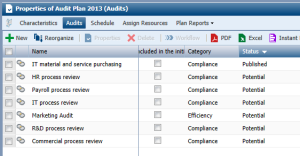
Grouping audits by status enables identification of audits that must be recreated on a subject.
To find audits of a past audit plan that were not executed:
1. In menu Audit > Preparation > Audit Plans, select the audit plan that interests you and click the Properties button.
Audit plan properties appear.
2. Click Audits.
The list of audits making up the audit plan appears.
3. Click the "Status" column title.
Audits are then sorted by this criterion.
An arrow associated with the column enables ascending or descending sort order.
Viewing previous test expenses
A report allows you to view expenses of previous audits.
To access this report:
1. Click Decisional Reports > Expenses Report.
2. (Mandatory) Select a Plan.
3. (Optional) Specify parameter values that interest you from among:
• audits
• expenses categories
• auditors
If you do not select a value for audits/categories/auditors, all audits/categories/auditors of the plan are taken into account.