Creating Objects Within the System Process
In this section you will create the objects to be placed in your diagram: participants in the process and tasks executed with their sequence flows and message flows exchanged.
Creating participants
You will define the participants that carry out the process steps.

Column presentation simplifies diagram reading, though other presentations are possible.
To create an actor participating in the process:
1. In the diagram objects toolbar of the system process, click on the arrow to the right of the
Participant 
button and, in the scroll-down list, select
Participant (Application).
2. Click in the diagram workspace within the system process frame.
The Creation of Participant (Application) dialog box opens.
3. To assign an application to this participant, enter the application name in the Application field.
If you are working on an empty library, you must create an application.
4. Click Finish.
The participant is positioned in the diagram; by default it has the name of the assigned application.
To position the participant in the frame of the described process:

Click the title bar of the participant and, while holding down the mouse button, move the object.
You can, for example, position it at top left of the organizational process frame.
To enlarge frames of participants so that their height is the same as that of the process:
1. Select the participants.
2. Click the point at the center of the bottom line of the frame, and holding the mouse button down, drag the frame line downwards.
Creating Tasks
A task is a step in a process.
You will create tasks and connect each of these to the application responsible for its execution.
To create a task:
1. In the diagram insert toolbar, click the
Task button

2. Click in the diagram within the shape of the participant concerned.
The task appears in the diagram.
To assign a task to another participant:
1. Move the task from one participant to another.
The frame of the destination participant is highlighted.
When placed, the task is disconnected from the source participant and connected to the target participant, which means that the target participant will execute the task.
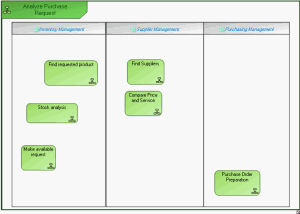
Example of participants and tasks
Creating events
To create the process start event:
1. In the diagram insert toolbar, click the
Event button

.
2. Click in the frame of the described process.
The Creation of Event (GRC) dialog box opens.
3. Select the "Start" event nature, then click Next.
4. In the list of types offered, select "None" then click Next.
5. Click OK (Web Front-End) or Finish(Windows Front-End).
An event named "Start" appears in the diagram.
Proceed in the same way to create the end events.
Describing task sequence flow
The sequence flows specify the order of task execution.
To create a sequence flow between two tasks:
1. In the diagram insert toolbar, click the
Sequence Flow button

.
2. Click the sender task and draw a link to the destination task.
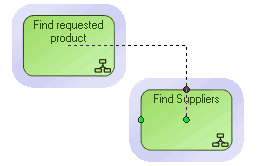
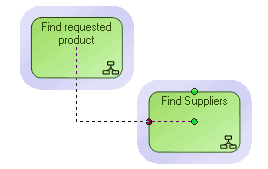
The two tasks are highlighted and a dotted line indicates the path that will be taken by the graphic link.
Several paths are possible, you must simply move the cursor to within the frame of the destination task.
Similarly create all sequence flows connecting tasks of the process, as well as the flows between events and tasks.
Defining a Condition on a Sequence Flow
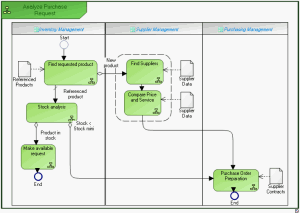
Example: Depending on whether it is a new product or a product already referenced, the "Find Requested Product" task can result in either a search for a supplier, or a stock analysis. This alternative requires the creation of a condition.
To define a condition on the sequence flow between the "Find Requested Product" task and the "Find Suppliers" task:
1. Right-click the sequence flow and select Properties.
2. In the dialog box that opens, select the Characteristics tab.
3. Click the arrow at the right of the Sequence Flow Type field and select "Conditioned".
4. In the Predicate field, specify the conditioning expression, for example "New Product".
5. Click OK.
The text associated with the condition appears on the condition which then takes form

.
To specify that the sequence flow between "Find Requested Product" and "Stock Analysis" is used by default:
1. Right-click the sequence flow then select Properties.
2. In the dialog box that opens, select the Characteristics tab.
3. Click the arrow at the right of the Sequence Type box and select "Default" in the drop-down list.
4. Click OK.
The sequence flow then takes form

.
Creating data objects
You can add data objects to the diagram. A data object is used to explain how documents, data, and other objects are used and updated during the system process.
Data objects are created using the
Data Object button

in the diagram objects toolbar.
Once created, you must connect them to the tasks that use them.
To connect a data object to a task:
1. Click the
Link button

in the diagram objects toolbar.
2. Click the data object and, holding the mouse button down, draw a link to the destination task.
3. Release the mouse button.
Shared Artifacts Example
Saving a diagram
Save your drawing using the
Save button.

You can now print your diagram by selecting File > Print.