Drawing the Interface Diagram
The interface diagram allows you to draw the interface of the operation or service.
User interface element
Buttons allow you to modify the appearance of the interface:
• Text Field
• List
• Radio Button
• Check Box
• etc.
To create an element:
1. In the diagram objects bar, select the button corresponding to the element required, then click in the diagram.
2. In the dialog box that appears, enter the name of the element.
3. Click OK.
You can also click the
User interface element 
button and indicate the element type in its properties dialog box.
User interface event
You can connect an event to a user interface element. In our example, the "Propose flights" button is connected to an event, which when actuated opens another interface.
To create an event:
1. Click the
Interface event 
button, then click in the diagram.
2. Enter the name of the event and click OK.
Event type
There are various types of event. An event can be:
• Click on a button
• Entry in a text field
• etc.
To specify the type of event:
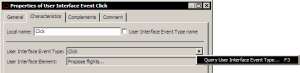
1. Open the properties dialog box of the event.
2. Click the Characteristics tab.
3. In the User Interface Event Type text box, click the arrow and select Query User Interface Event Type.
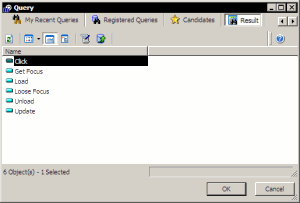
The selection dialog box appears.
4. Click Find.
The list of event types appears.
5. Select the type required and click OK.
Connecting the event to an element
To connect the event to an element, there are two possibilities:
• Select the event in the diagram and drag it onto the element.
• Or open the properties dialog box of the event and complete the User interface element text box.