Viewing Diagrams from an Object
You can view diagrams:
• which describe the current object.
• which contain the current object.
To preview a diagram describing the selected object:

From a navigation pane (for example), right-click an object and click
Preview.
To view diagrams containing a particular object:
Right-click the object and select
Diagrams Containing Object.
A window appears presenting diagram previews.
A specific toolbar appears at the top of the diagram.
Buttons allow you to display the list of diagrams containing or describing an object. The mouse wheel also enables navigation between diagrams.
Using the Diagram Objects Toolbar
From the diagram toolbar you can carry out different actions on the diagram or on the object described by the diagram:
• Enlarge or reduce the image by zoom in and out.
• Zoom in (

).
• Zoom out (

).
• Return to original image size (
See all 
).

The mouse wheel also allows you to zoom in and out.
• Go to the object properties page (

).
• Access diagrams containing the described object.
The object blinks when it appears in another diagram.
Unavailable options are grayed.
You can also move the image on the page (click the image and move the mouse while holding its button down).
The diagram name and type appear at the bottom of the page.
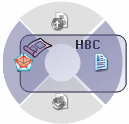
Displaying the pie menu in a diagram preview
Objects of diagrams are "active".
Select an object in the preview diagram.
A pie menu appears on the object.
With this menu you can:
• access object Properties
• generate a report on the object
• access the diagram describing the object.
• access diagrams containing the object.
Unavailable options are grayed.