Object Display Options (Windows Front-End)
HOPEX objects are represented in a diagram by graphical shapes. Each object is represented by a default shape. Several shapes are available for each object.
You can modify:
• the object shape
• the object default shape
Modifying object shape
To modify, for example, the shape representing an org-unit in a diagram:
1. In the diagram, right-click the org-unit and select Shapes and Details.
The Display dialog box opens.
2. In the Shape frame, select the desired shape, then click Apply.

The
File box indicates the file path of the selected shape.
Modifying object default shape
To modify the default shape of an object:
Eg: the shape of an org-unit:
1. Right-click the object and select Shapes and Details.
The Display dialog box opens.
2. In the Shape frame, clear the Manual Shape check box to display the default shape of the object.
In the grayed File box, the name of the default shape is displayed.
3. Note the name of the default shape of the object.
orgu_bg.mgs (for org-unit)
4. In the Shape frame, select the shape you wish to display by default.
5. In the File box, note the path of the new shape.
...\Mega_Std\Pictures.7220\Method\orgud.mgs
6. Under the path indicated, select the file orgud.mgs and copy this in the ...\Mega_Usr folder.
7. Change the name of the copied file to the default name.
orgud.mgs par orgu_bg.mgs
The default shape of the object (eg: org-unit) is modified.
Shape modification default parameters
In the Display window, two options are used when customizaing the shape:
• Apply default size
If you have customized the shape size, by selecting this option you can apply a default size to the selected shape on modification.
If this option is not selected, shape size will remain unchanged on shape modification.
• Apply default fonts
If you have customized the shape font, by selecting this option you can apply a default font to the selected shape on modification.
If this option is not selected, shape font will remain unchanged on shape modification.
Shape characteristics
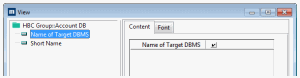
In the left pane of the Display dialog box, select one of the characteristics listed below the object name (for example Name).
The right pane displays two tabs:
• The Content tab enables selection of the fields that are displayed in the shape.
• The Font tab enables modification of characteristics of the font used by the shape.
Display object characteristics
To modify the display of characteristics proposed by default:
1. Right-click the object in question.
2. Select Shapes and Details.
3. In the window that appears, click in the tree on the left, on an object type characteristic.
You can for example choose to display or not display the name of the target DBMS of database object type.
4. Select the corresponding check box and click OK.
The characteristics appear or disappear according to the choices made. These values can be modified in the
Characteristics tab of the Properties dialog box of the object.
Modifying text field positions (Windows Front-End).
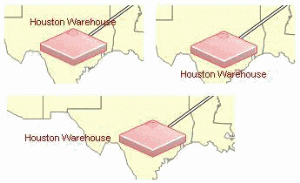
You can modify the position of object text fields that can be placed in a diagram.
In this way, the position is no longer defined as static in the .mgs file.
To modify the position of a the text field of an object:

Right-click the text field, select
Position and the desired position.
Eg: the text field of a site.
You can thus choose to position the text box on top, on the bottom, to the left, etc.