Creating a Workflow Definition

A workflow definition enables definition of a sequence flow of operations executed by persons. When executed, the workflow assures management of the sequence of operations and notification of the persons involved. The workflow can be applied to a repository object known as the workflow subject. In this case, expected operations are related to this object.
To create a workflow definition:
1. In the Utilities navigation window, right-click the Workflow Definition folder and select New > Workflow Definition.
2. In the dialog box that appears, enter the name of the workflow definition and click OK.
The new workflow definition is created.
A workflow must relate to an object type. You can therefore associate an object type with the workflow definition you have just created.
To define the object type to which the workflow relates:
1. In the properties dialog box of the workflow definition, select the Characteristics tab.
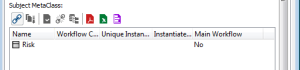
2. In the Subject MetaClass section, click the Connect button.
3. In the Select Query dialog box, select "Workflow Subject MetaClasses" and click OK.
4. Select a MetaClass and click OK.

The connected MetaClass must be a sub-class of the "Workflow Subject" or "System Workflow Subject" abstract MetaClass.
A subject MetaClass is a MetaClass to which a workflow definition can be applied. Workflows defined by this workflow definition can be executed on instances of this MetaClass.
Several options are available in this dialog box:
• Allow Subject MetaClass Creation: allows the user to create the object to which the workflow relates at the moment the workflow is started.
• Allow Subject MetaClass Listing: allows the user to list workflow subjects available at the moment the workflow is started.
• Allow Subject MetaClass Query: allows the user to start the query tool to select a workflow subject at the moment workflow is started.
• Subject Mandatory: obliges the user when executing the workflow to select the object to which the workflow relates.
• Activate Workflow : enables workflow activation or deactivation.
Users should not access workflows which are in course of definition. For this reason, it is useful to be able to deactivate a workflow.
If the workflow is deactivated, it can no longer be started. The
Start Workflow menu of the workflow definition is grayed.
For each subject MetaClass you can specify:
• Workflow Condition: a condition enables filtering of workflows that can be instanced from a subject MetaClass.
It is for example possible to start a workflow on an object type that has a particular characteristic.
A condition can be used on workflows instanced at creation of the subject when several workflow definitions exist for a MetaClass.
• Unique Instancing: enables indication that for a subject instance you can have only a single workflow instance in progress.
• Instance at Creation: enables creation of a workflow instance at workflow creation that manages the life cycle of the object.
• Main Workflow: enables specification, for a given subject MetaClass, that this workflow gives or does not give the main current status (several workflow definitions being defined for the same MetaClass).
To be able to specify the workflow, you must then create the workflow definition diagram.
Viewing workflow definition contents
You can view content of a workflow definition via the Utilities navigation window.
the Utilities navigation window.
1. In the workspace, select View > Navigation Windows > Utilities.
2. Expand the Workflow Definitions folder.
For each workflow definition, contained elements are displayed in sub-folders:
• workflow statuses
• workflow transitions
• workflow participants
• workflow actions
Creating a workflow definition diagram
To create a workflow definition diagram:
1. Right-click the workflow definition and select New > Diagram.
2. In the dialog box that opens, select Create.
The diagram is created.
In a workflow definition diagram, you must:
• create a workflow status of Initial type.
• create the different workflow statuses and connect these by means of workflow transitions.
• create the last workflow status or statuses of Final type.
• specify persons that trigger transitions: to do this you connect workflow participants to the different transitions.
Persons must be associated with workflow participants.