Creating objects
You can create objects in two ways:
• from the insert toolbar on the left of the diagram
• from an insert toolbar available on each object (MEGA Web Front-End)
Creating an object from the diagram insert toolbar
To create an object:
1. In the diagram insert toolbar, click an object button, for example an organizational process

.
When you move in the diagram, the cursor takes the following form:
2. Click on the diagram.
A creation wizard appears depending on the object type.
The object is created.
Using the Object Insert Toolbar (MEGA Web Front-End)
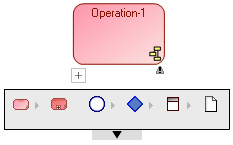
An insert toolbar available on each object simplifies object creation by proposing object selection help. It proposes only those objects that can be connected to the current object.
To create an object:
1. Position the mouse cursor on a diagram object.
A sign

appears below the shape.
2. Click sign
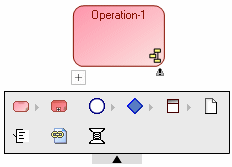
The bar containing the objects you can insert at this stage appears.
The arrow at the bottom of the insert toolbar scrolls to display other object types.
3. Click the icon that represents the object you wish to create.
For example:
Operation 
.
The link selection dialog box appears.
4. In the link selection dialog box, select the desired link type.
For example: Sequence Flow in a BPMN organizational process diagram.
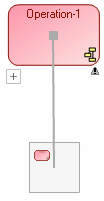
You preview the object that will be created, as well as the link to the previous object.

To cancel the operation, click the <Esc> key.
5. Click in the diagram at the point where you wish to place the object.
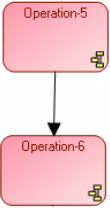
The object is created, with the link to the previous object.