Running the Import Wizard
Excel import enables creation of new objects and modification of existing objects.
Excel data to be imported in
MEGA should be structured. You can use an Excel file previously exported with
MEGA to define file parameters and content. See
"Example of generated files".
To import Excel data in MEGA:
1. From:
• MEGA Windows Front-End, click File > Import > Excel (*.xls ; *xlsx).
• MEGA Web Front-End, click Home > My Tools > Excel > Import.
The import wizard opens.
• the Administration desktop (MEGA Web Front-End): in the Tools pane, select the Excel > Import sub-folder.
The import wizard opens.
2. To the right of the
Excel Import File field, click
Browse 
.
3. Indicate the file type and file to be imported.
4. Click Next.
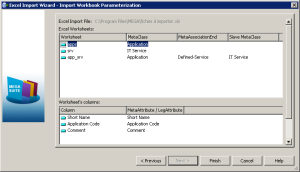
The wizard displays the worksheets and columns detected in the file.
If the file parameters have not been recognized by the wizard, you can enter them in this dialog box.
5. Click Next.
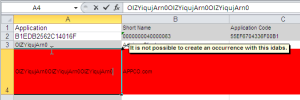
The wizard provides a report of import results in an Excel file. This file opens automatically, indicating in red any data that poses a problem. In the following example, the file has identified an application that exists in MEGA but of which the identifier has been modified in the import file.

The first two lines of an Excel worksheet are reserved for file configuration. Ensure that the first two lines of the imported file remain identical to those obtained after an export.
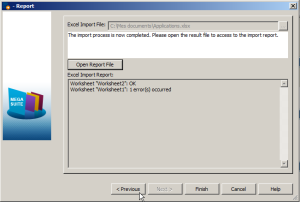
6. Click the Open Report button of the import wizard to access the detailed report of import errors.
7. Click:
• Finish so that imported data will be visible in MEGA.
• Previous to modify import parameters.
• Cancel to discard the report.