Viewing and Updating Book Content
The content of a book or chapter is visible in its properties dialog box.
Viewing the content of a book or chapter
To view the content of a chapter:
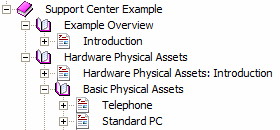
1. Click the chapter in the navigation tree.
2. In the toolbar, click
Properties 
.
The properties window opens.

To simplify your work, position the properties dialog box in the central part of the edit window by right-clicking the window title bar and selecting
Integrate in Edit Window.
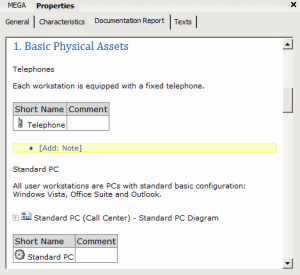
3. Select the Properties window and select the Documentation Report tab to view text of the chapter.
To avoid long display times, diagrams are replaced by a standard image. You can display the diagram by clicking its image.
To view a diagram contained in a paragraph, click the

icon next to the diagram icon.
Accessing the content of a paragraph
From the properties window of a book or chapter, it is possible to access objects contained in paragraphs.
To access a diagram or objects it contains:
1. Click the diagram so that its components are displayed.
2. Right-click any component to access its characteristics.
To access text of a paragraph from the Documentation Report tab of the properties dialog box of a chapter or book:
1. Position the mouse on the paragraph that interests you and click.
The properties dialog box of the paragraph opens.
2. Select the Characteristics tab to access paragraph text.
3. Modify the existing text.
Note that the
Comment area proposes features similar to those of MS Word, including a spelling checker.
4. Click OK.
Connecting objects to a paragraph
Several types of object can be connected to a paragraph:
• a diagram
• an external reference
• an object
You can use the Connect command in the paragraph pop-up menu to connect new objects.
To connect an object to a paragraph, either:
• right-click the paragraph, select Connect, then the desired object type.
• or, click the object (from a diagram, or from the Favorites or History windows for example) and drag-and-drop the object to the target paragraph.
To consult the list of objects referenced in a paragraph:
• expand the navigation tree of the book.
• Open the properties dialog box of the paragraph and select the Objects linked for documentation tab.
• Buttons Connect or Reorganize enable modification of paragraph content.
The sections
Included System Diagram and
Mentioned Object System enable referencing of system objects such as descriptions, report templates (MS Word) and queries.
• The Documentation Report tab displays the result of your modifications.